
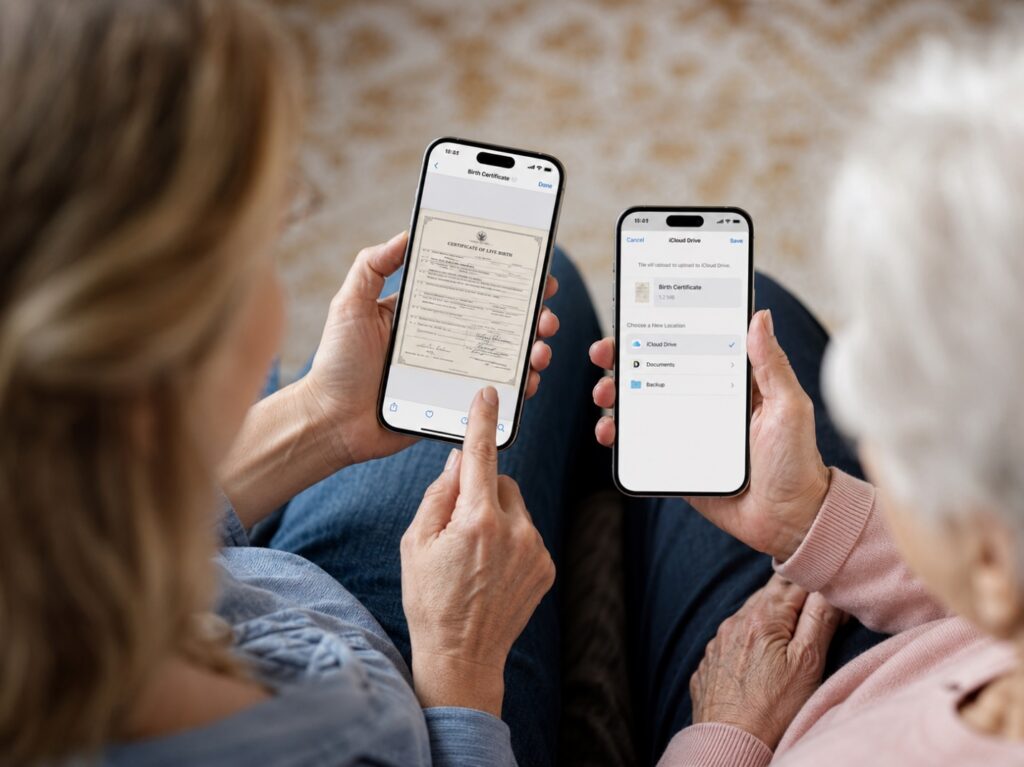
A middle-aged daughter helps her elderly mother save a scanned birth certificate to iCloud Drive using two iPhones.
The federal government’s preparedness site, Ready.gov, gives the same advice: keep a copy of your important documents uploaded to the cloud in case of an emergency. This guide shows you how — using two free tools already built into your iPhone, iPad, and Mac. There are no new gadgets to buy and nothing to memorize.
What Is iCloud Drive — and the “Files” App?
iCloud Drive is Apple’s online storage — what most people call “the cloud.” Instead of keeping documents on a single device, it stores them safely on Apple’s servers, so nothing is lost if a laptop breaks or a phone is replaced. The Files app is simply the doorway to that storage on your iPhone and iPad. You can keep documents loose, or tidy them into folders such as Taxes, Medical, Insurance, and Home — whatever makes sense to you.
Because everything is stored online, you can reach it from any Apple device, or from any web browser by signing in at iCloud.com. That makes it a handy place for sensitive papers you may suddenly need — an insurance card at the pharmacy, a deed at the bank, a passport number at the airport. Many people find it easiest to do everything right from their phone, where the Files app keeps every document a tap away.
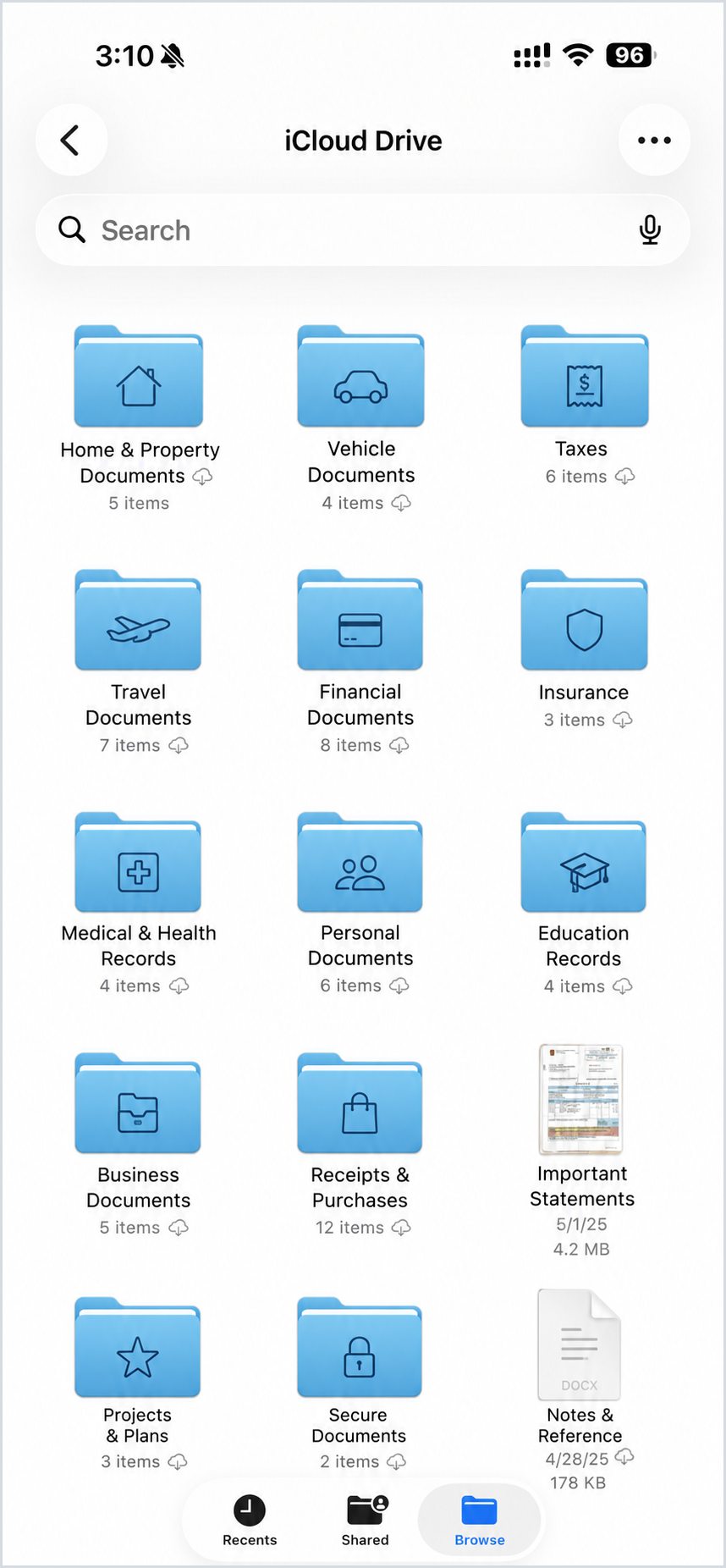
iCloud Drive in the Files app on iPhone — your documents, tidied into folders.
Move Files From Your Computer to the Cloud (at iCloud.com)
If your documents live on a laptop or desktop, you can move copies into iCloud Drive in just a few minutes:
- Open a web browser and go to iCloud.com. Sign in with your Apple Account — the same email and password you use on your iPhone.
- Click the Drive app. On the iCloud.com home page it appears as a tile labeled “Files.” Drive and Files are the same place — Apple simply shows it both ways, so don’t let the two names confuse you.
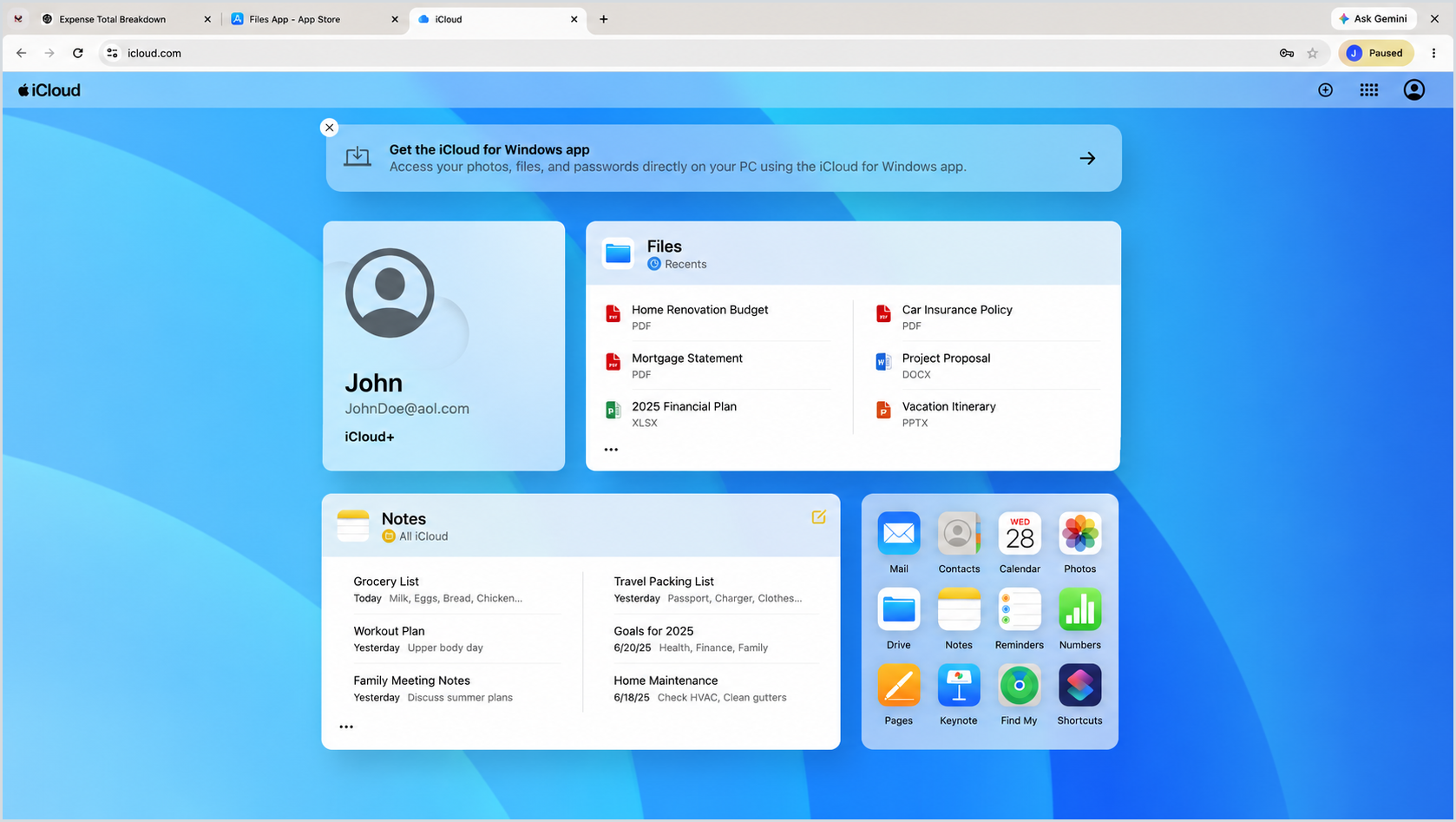
On iCloud.com, the “Drive” app and the “Files” panel open the very same storage.
Find Everything Under “Browse” — and Drag and Drop
Once Drive is open, click Browse on the left. This is the heart of iCloud Drive — the single place where all of your files and folders live.
To add documents from your computer, you don’t need any special button. Simply drag a file — or an entire folder — from your computer and drop it into the Browse area. It uploads to the cloud and then appears on every device signed in to your account. A few well-named folders (for example, Taxes, Insurance, and Medical) will keep things easy to find later.
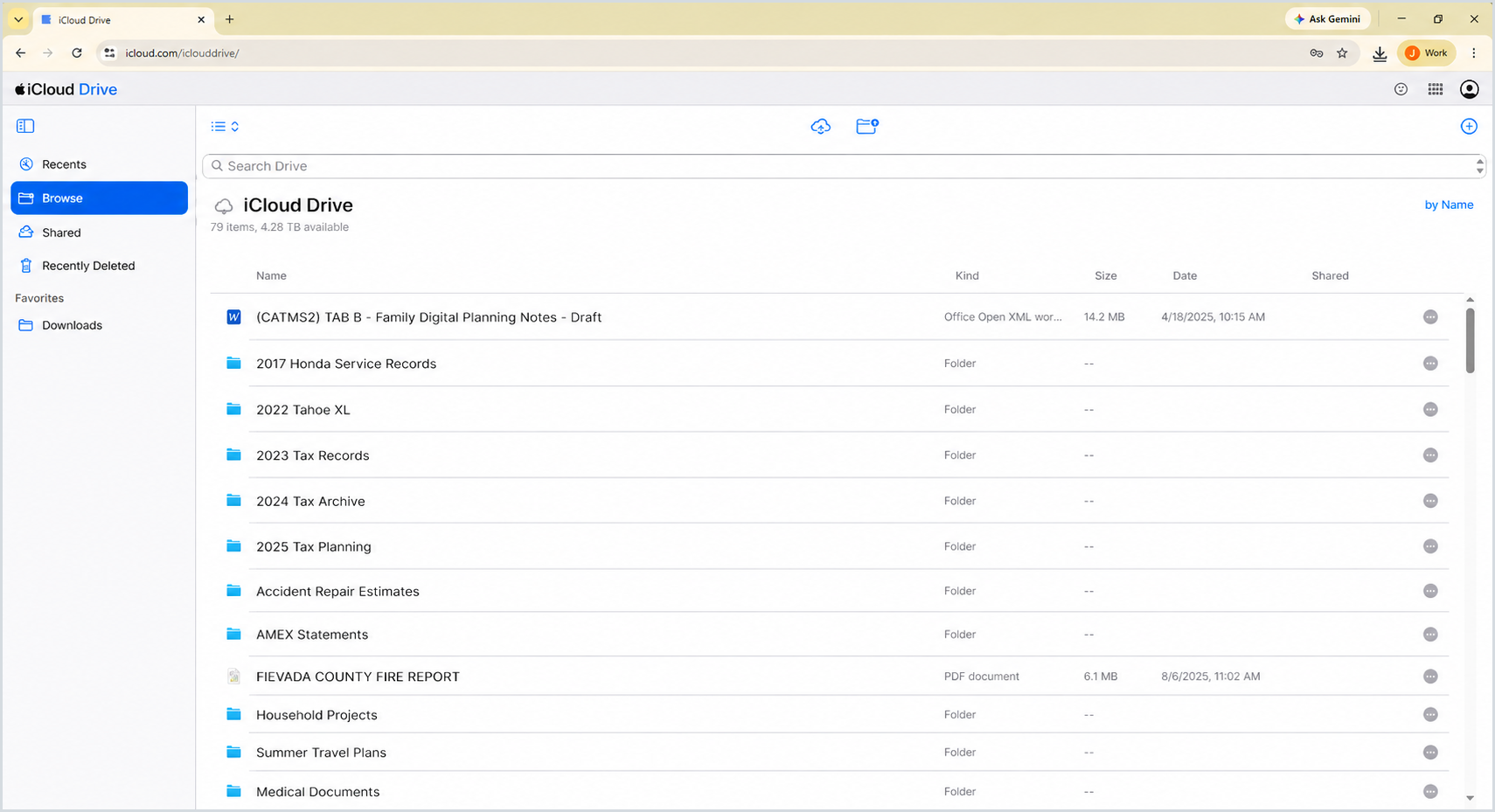
The “Browse” view in iCloud Drive. Drag files or whole folders here to upload them.
Do It All From Your iPhone or iPad
You don’t need a computer at all. The Files app is free, and on most newer iPhones and iPads it is already installed. If it has been removed, you can download it again from the App Store.
To use it, open Files and tap Browse, then iCloud Drive. Tap a folder to open it, and tap any document to read it. You can also save a photo of a paper document, or a scanned PDF, straight into a folder — turning a piece of mail or a statement into a digital copy you’ll always have.
Lock the Files App With Face ID
Because your iCloud Drive may hold sensitive papers, it’s worth adding a lock so that only you can open it. On an iPhone or iPad running iOS 18 or later:
- Press and hold the Files app icon until a small menu appears.
- Tap Require Face ID (it may say Touch ID or Passcode, depending on your device).
- Tap Require Face ID again to confirm.
Now your face — or your passcode — is needed every time the app is opened. This lock applies only to the device you set it on, so repeat it on each iPhone or iPad you use.
A Few Things to Keep in Mind
- Storage and cost. Every Apple Account comes with a small amount of free iCloud storage, and you can add more through a paid iCloud+ plan if you need extra room. Check Apple’s current pricing for the plan that fits.
- Your documents are protected. Apple encrypts the data you store in iCloud, and every Apple Account uses two-factor authentication for sign-in. For the strongest protection, you can turn on Advanced Data Protection, which adds end-to-end encryption to iCloud Drive.
- Keep your originals, too. Digital copies are wonderful for access and backup, but some originals — like a physical passport or certain legal papers — still matter. Keep those in a fire- and water-resistant box or safe (see Goldie’s table below).
- Let someone you trust help. Consider sharing access, or your sign-in details, with a spouse, adult child, or caregiver, so a trusted person can reach important documents if you are ever unable to.
Goldie’s Quick-Start Guide
Everything you need to begin, in one place. Tap a link to open it.
|
Step |
What to Do |
Tap Here |
|---|---|---|
|
Get the free Files app |
Download Apple’s Files app to open and manage iCloud Drive on your iPhone or iPad. |
|
|
Open iCloud on a computer |
Sign in at iCloud.com, then click Drive (shown as “Files”) to reach the very same storage. |
|
|
Lock it with Face ID |
Press and hold the Files app, then tap “Require Face ID” (iOS 18 or later) to protect sensitive papers. |
|
|
Understand the security |
See how Apple encrypts iCloud data and how to turn on Advanced Data Protection for the highest level. |
|
|
Protect the paper originals |
Keep birth certificates, deeds, and other originals in a fire- and water-resistant box or safe — designed to help guard against fire and water damage. Check each product’s specifications. |
|
|
See why it matters |
Ready.gov explains why keeping copies of key documents in the cloud helps in an emergency. |
Sources: Ready.gov (Save Documents to the Cloud) and FEMA; Los Angeles County and the UCLA Anderson Forecast (January 2025 wildfire damage estimates); Apple Support (iCloud data security; lock or hide an app). Screenshots provided by the author; hero illustration by GoldieCircle.
Disclaimer: GoldieCircle may recommend third-party products and services based on internal evaluation. Such recommendations do not constitute a warranty or guarantee of performance, suitability, or lifespan. All products are subject to their respective manufacturers’ terms and conditions. GoldieCircle assumes no liability for any claims or damages arising from the use of any recommended product or service. This article is general information, not legal, financial, or technical advice.


Loading comments…