
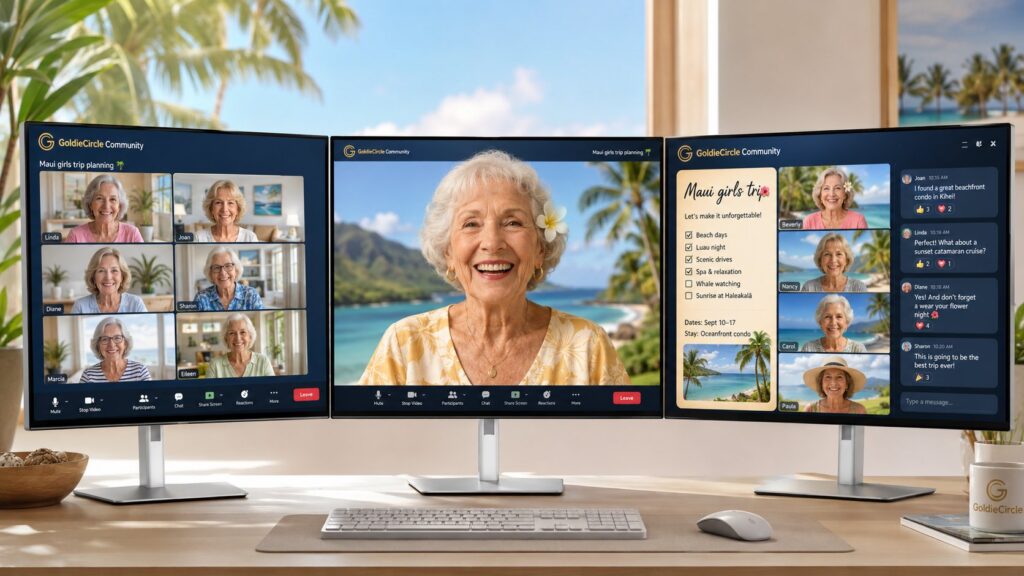
REAL-WORLD WAKE-UP CALL: Nearly 6 in 10 American adults say screen time has left them with tired, dry, or burning eyes, blurred vision, headaches, or neck and shoulder pain — a cluster doctors call digital eye strain (American Optometric Association). For aging eyes, a screen that is too small, too glary, or stuck at the wrong brightness makes every one of those symptoms harder to live with.
If you have ever watched a parent lean in close, squint at tiny text, or tilt their head to dodge a glare, the problem often is not their eyes — it is the screen. A good monitor quietly fixes a lot of that. The Dell UltraSharp U2725QE is a 27-inch 4K display built for long, comfortable viewing, and it is the kind of well-made screen that can serve a household for years.
A Bigger, Sharper Screen Aging Eyes Will Thank You For
This is a 27-inch 4K UHD display (3840 × 2160). That pairing matters: 4K packs in enough detail that text stays crisp even when you make it much larger. On Windows or Mac, you can increase the text and icon size for the whole system and everything stays sharp instead of turning blurry or pixelated — so your parent can read comfortably without leaning in. The enhanced IPS Black panel also delivers deep contrast (a 3,000:1 ratio, per Dell), which helps black text stand out clearly against a white page.
Easy on the Eyes, Designed for Long Sessions
This is where the U2725QE stands out for seniors. It is certified to T.ÜV Rheinland Eye Comfort 3.0 at the top 5-star level. Dell’s always-on ComfortView Plus is designed to reduce blue light without washing out colors, and the backlight is flicker-free — both aimed at viewing comfort during long sessions. A built-in ambient light sensor can automatically adjust brightness and color tone to match the room, so the screen is not blinding at night or too dim by day — one less setting for anyone to fuss with. The low-reflectance, anti-glare panel also cuts reflections from windows and lamps.
One honest note: eye doctors at the American Academy of Ophthalmology say the small amount of blue light from computer screens does not damage your eyes; eye strain is mostly about glare, brightness, focus, and not taking breaks. So treat these features as comfort aids, not medical protection — and keep the 20-20-20 habit (every 20 minutes, look about 20 feet away for 20 seconds).
Adjust the Screen to the Person — Not the Other Way Around
The stand raises, lowers, tilts, swivels, and pivots. That sounds minor until you remember how many older adults wear bifocals or progressive lenses and end up craning their neck to find the “sweet spot.” Being able to lower the screen and tilt it back can ease neck and shoulder strain. Prefer a monitor arm or wall mount? It uses the standard VESA 100 × 100 pattern.
One Cable, Less Clutter (a Caregiver’s Friend)
The U2725QE doubles as a docking station. A single Thunderbolt 4 cable can carry video and charge a laptop (up to 140W), and the monitor adds extra USB ports, HDMI, and wired Ethernet. For the family member setting things up, that usually means fewer cables, fewer “which plug goes where” phone calls, and a tidier desk. A built-in KVM even lets one keyboard and mouse control two computers.
Built to Last — and Backed by a Brand That Sticks Around
You asked about buying American and about security, so here is the straight version. A monitor is mostly a passive display, so on its own it is not a major cybersecurity risk the way a router or PC is. The real, practical advantages of choosing an established U.S. company like Dell are different: genuine hardware instead of a grey-market knockoff, long-term driver and firmware support through Dell Display Manager, responsive warranty service, and a company likely to still be around to honor it. Dell typically backs UltraSharp monitors with a multi-year limited warranty and Advanced Exchange service — confirm the current terms when you buy. Those are the things that actually make a screen “last.”
A Few Honest Things to Consider
- It needs a computer. This is a monitor, not an all-in-one — your parent still needs a laptop or desktop to plug in.
- It is a premium model. Street prices have run roughly in the $550–$760 range; if all someone does is read email, a simpler 4K screen may be plenty.
- Some features are nice-to-haves. 120Hz and Thunderbolt are not essentials for most seniors — you are partly paying for build quality and the eye-comfort certifications.
- Specs do not replace an eye exam. If a parent is squinting more than usual, encourage a check-up.
Simple Setup Tips
- Have a family member or tech-savvy friend connect it and make text larger (Windows: Settings → System → Display → Scale; Mac: System Settings → Displays).
- Leave ComfortView Plus and the ambient light sensor on — they are enabled by default.
- Position the top of the screen at or just below eye level, about an arm’s length away.
Goldie’s Table (Our Top Picks)
|
Product |
Why It Helps Seniors |
Link |
|---|---|---|
|
Dell UltraSharp U2725QE (27″ 4K) |
Big, razor-sharp 4K screen so text can be enlarged without blur. T.ÜV 5-star eye-comfort rating, always-on low blue light, flicker-free, and an ambient-light sensor that auto-adjusts brightness. Anti-glare panel and a fully adjustable stand (height, tilt, swivel, pivot) for a comfortable, neck-friendly setup. Single-cable docking keeps the desk tidy. |
Photo adopted from GoldieCircle. Any additional product images should be used only where licensing or embed permission exists.
Disclaimer: GoldieCircle may recommend third-party products and services based on internal evaluation. Such recommendations do not constitute a warranty or guarantee of performance, suitability, or lifespan. All products are subject to their respective manufacturers’ terms and conditions. GoldieCircle assumes no liability for any claims or damages arising from the use of any recommended product or service.



Loading comments…