

An elderly Caucasian couple waits at an Apple Store Genius Bar area for help with their iPad, seated among other customers on wooden cube stools.
Phyllis Weisberg was 90 years old and, in her own words, a trusting person who believed most people are good. According to the National Council on Aging, after she accepted “help” from fraudsters posing as tech-support agents, she lost $20,000. Fake “Apple” and “Microsoft” pop-ups and phone calls are one of the most common ways scammers reach older adults — the Federal Trade Commission reports that older consumers lost about $159 million to tech-support scams in 2024 alone.
- Book ahead, skip the line — Apple stores are busy, so a reservation means a real expert is set aside for your parent at a time you choose.
- The visit itself is free — Apple checks the device at no charge, and if a repair is needed you’ll get a cost estimate before anything is done.
- Start only on Apple’s real site or app — this is the single best way to steer clear of fake “Apple support” scams.
- Have two things ready — the Apple Account password (to book) and a photo ID (to check in at the store).
- Plans can change — you can reschedule or cancel anytime straight from the confirmation email.
Step 1: Go to the Real Apple Website
- Open a web browser and type apple.com/retail/geniusbar. Type it in yourself — don’t tap a link from an email, text, or pop-up. Click on “Get Started”.
- Make sure your Apple Account sign-in information is ready
- Cybersecurity note: Before giving your iPhone to a technician for repair, enable “Require Face ID” on important apps such as Banks, iPhone Notes, Mail apps. Press and hold the app icon, then select “Require Face ID.” This helps prevent technicians or others from accessing private apps, such as Notes, Banking apps, Mail apps, Camera because of pictures, while your phone is being serviced.
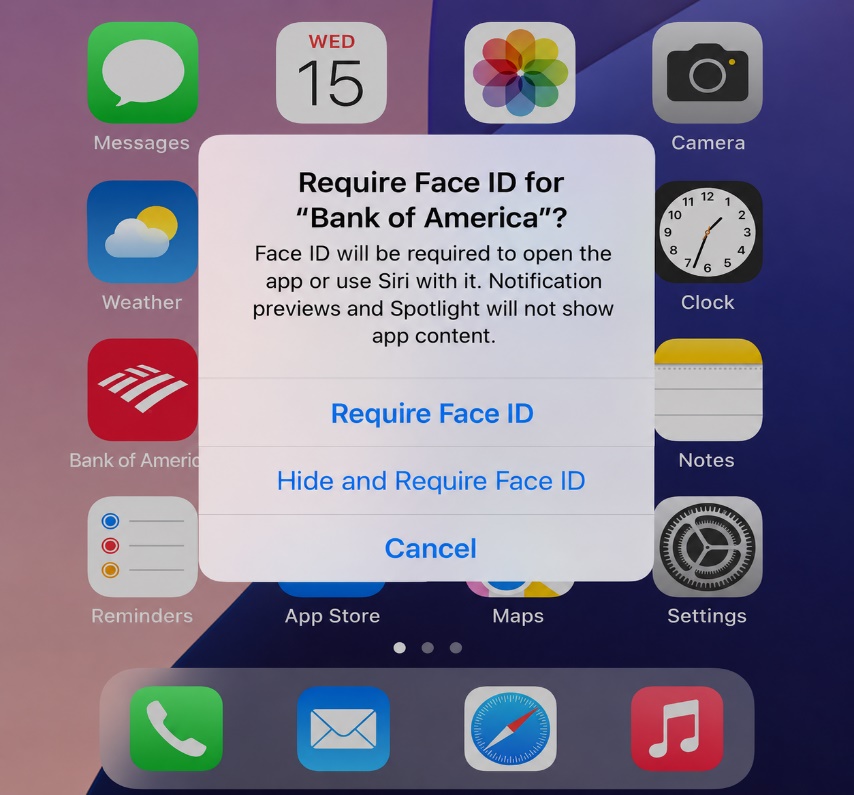
iPhone home screen showing a pop-up that says “Require Face ID for ‘Bank of America’?” with options to “Require Face ID,” “Hide and Require Face ID,” or “Cancel.”
Step 2: Choose the Device and the Problem
- Pick the product that needs help — iPhone, iPad, Mac, Apple Watch, and so on.
- Choose the topic that matches the issue. If nothing fits, pick “the topic is not listed” and describe it in a sentence.
- Apple will first try to help online and may offer a quick fix, a chat, or a phone call. To see someone in person, simply keep going.
Step 3: Pick the Store, Day, and Time
- Apple shows the nearest Apple Stores. Choose the most convenient one — if the location looks wrong, search by city or ZIP code.
- Pick a day and time, then confirm (the button usually says Reserve now).
- Add a mobile number if you’d like a text reminder before the appointment under “Appointment Notification”.
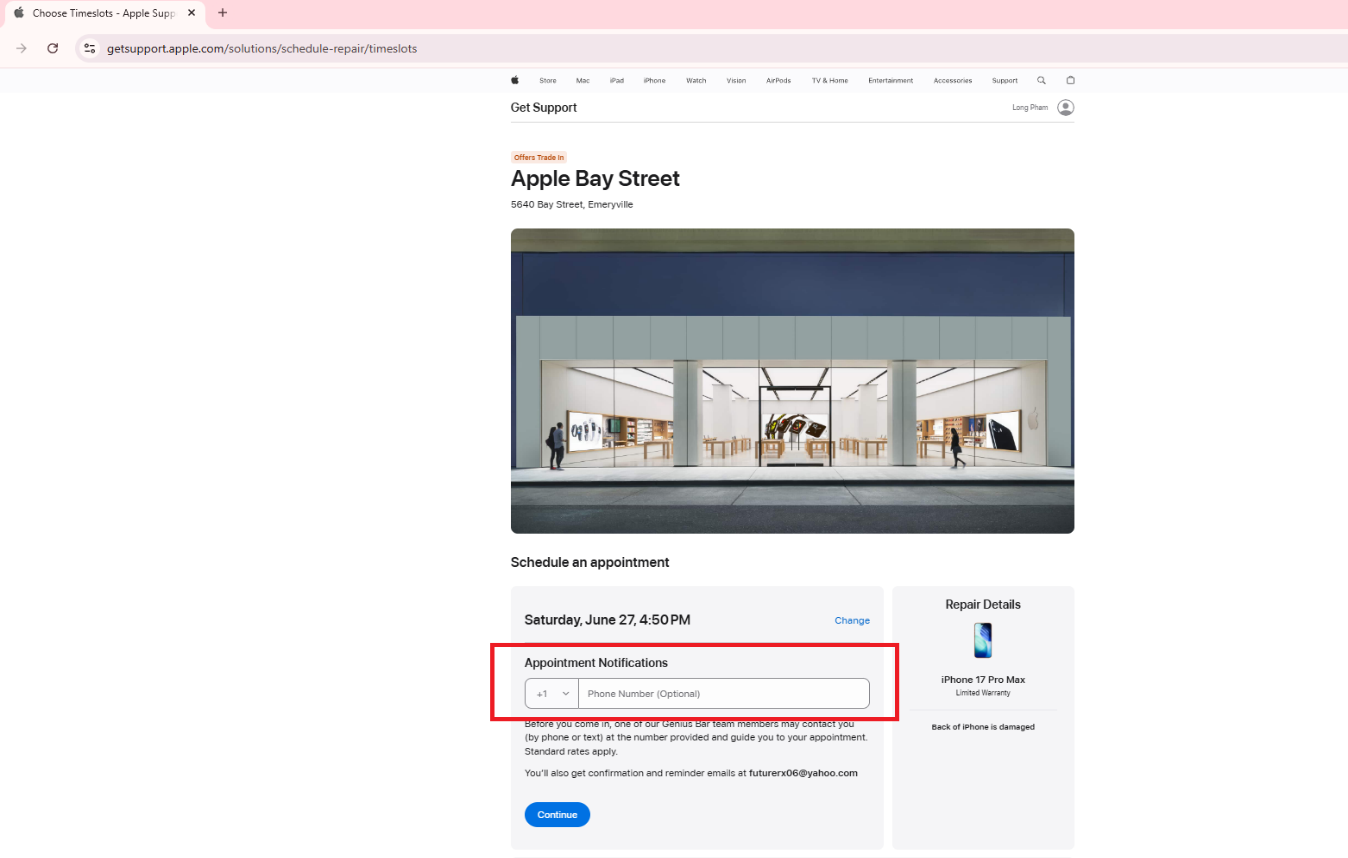
Apple Support appointment page for Apple Bay Street showing a scheduled repair appointment, with the “Appointment Notifications” phone number field highlighted in red.
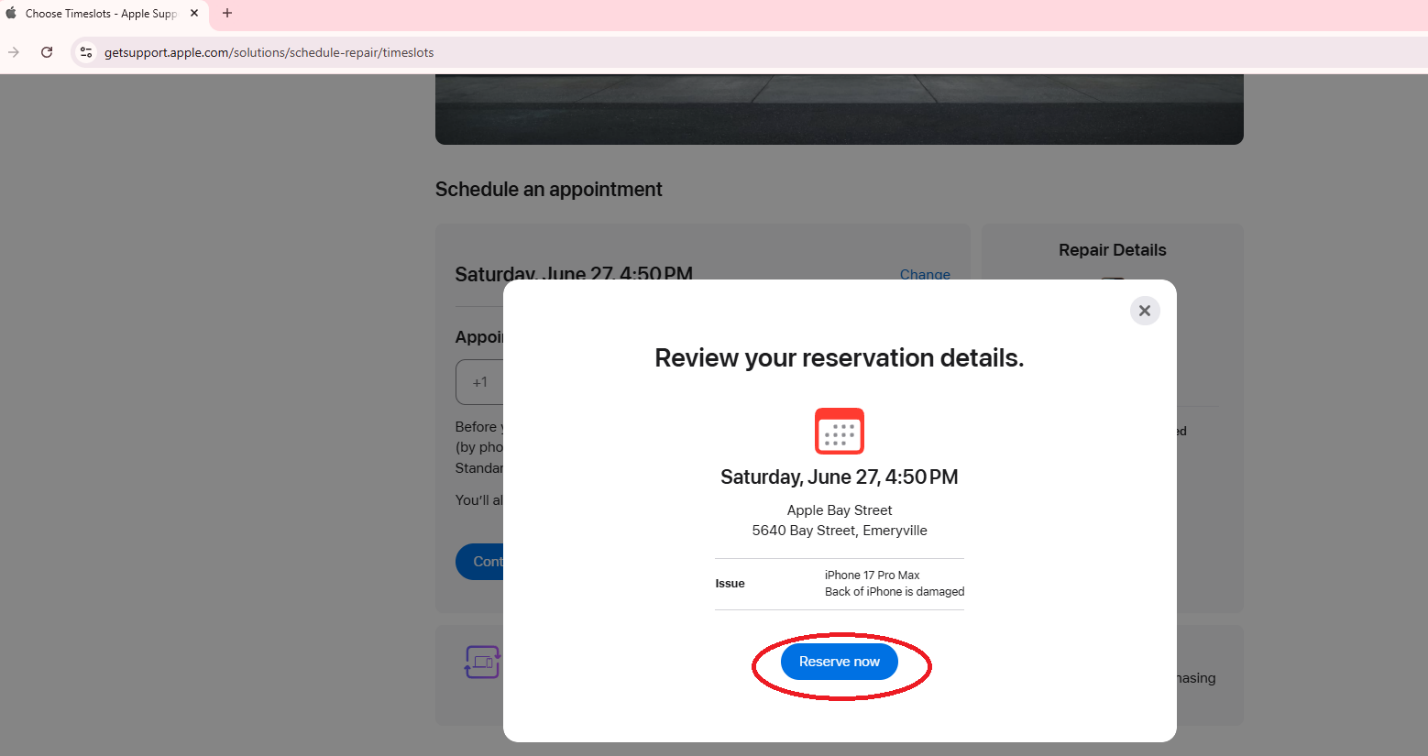
Apple Support reservation review pop-up showing an appointment for Saturday, June 27 at 4:50 PM at Apple Bay Street, with the blue “Reserve now” button circled in red.
Step 4: Get the Confirmation
- You’ll see a confirmation on the screen and receive an email. Keep that email — you can change or cancel the appointment anytime using “Manage reservation.”
A Few Things to Keep in Mind
- Apple will never call you unexpectedly to say your device has a virus. If you see a pop-up or get a call, text, or email like that, don’t call the number — it’s a scam.
- Bring a photo ID that matches the name on the reservation, along with the device and its accessories (including the power cord).
- Back up the device first (iCloud is easiest) in case a repair requires a reset.
- The appointment is free; you only pay if a repair or part is needed, and only after you approve the cost.
Goldie’s Apple Store Booking Cheat Sheet
A quick reference you can skim or share with the family:
|
Step |
What to Do |
Where to Go (Official Apple) |
|---|---|---|
|
Genius Bar (help & repairs) |
Pick the device → choose the topic → “Bring in for Repair” → sign in → choose store, day, and time. |
|
|
Reschedule or cancel |
Use “Manage reservation” in the confirmation email anytime — no need to call. |
Illustration created by ChatGPT AI.
Disclaimer: GoldieCircle may recommend third-party products and services based on internal evaluation. Such recommendations do not constitute a warranty or guarantee of performance, suitability, or lifespan. All products are subject to their respective manufacturers’ terms and conditions. GoldieCircle assumes no liability for any claims or damages arising from the use of any recommended product or service.
Loading comments…