
About 600,000 adults age 70 and older stop driving every year (USAging). When the keys go away, the easy trip to the grocery store often goes with them. Roughly 1 in 11 Americans age 60 and older — about 7.4 million people — faced food insecurity in 2023 (NCOA, citing Feeding America), and nearly half of older adults are at risk of malnutrition, often simply because they can’t get to the store or cook a full meal (NCOA). A skipped lunch here and a frozen dinner there can quietly turn into weakness, weight loss, and falls.
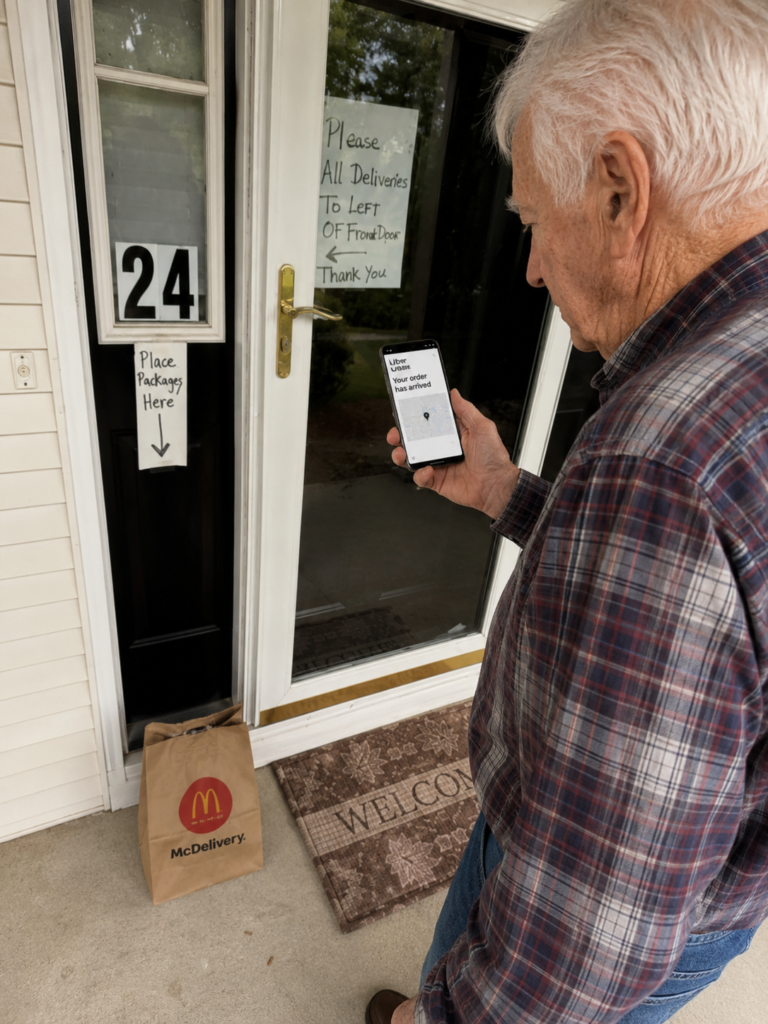
If you help care for an aging parent, you know the worry: Are they eating well? Did they skip dinner again because getting to the store felt like too much? Uber Eats can quietly solve a big part of that problem. With a few taps, you can send a warm meal or a bag of groceries straight to their door — and watch it arrive in real time, just like the gentleman in the photo above. Here’s how to set it up, step by step.
What Uber Eats Can Do for Your Parent
- Deliver hot, ready-to-eat meals from local restaurants — no cooking required.
- Deliver groceries and everyday essentials from nearby stores (selection varies by area).
- Show a live map so your parent can see the driver getting closer and receive a “Your order has arrived” alert.
- Let the driver leave the order at the door, so there’s no rush to get up and answer.
- Let you — the caregiver — place, pay for, and track orders from your own phone, even from another state.
Before You Start (What You’ll Need)
- A smartphone or tablet for your parent (and one for you).
- A free Uber or Uber Eats account for each of you.
- A payment method — a debit or credit card, or an Uber Eats gift card.
- About 15 minutes, plus a quick visit or phone call to walk through it together.
Step 1: Set Up the Uber Eats App on Your Parent’s Phone
- Download the app. Get the free Uber Eats app from the App Store (iPhone) or Google Play (Android).
- Create the account. Use your parent’s phone number or email, then enter the code that’s texted to them.
- Turn on a simpler view. Uber offers Simple Mode — a senior-friendly layout with larger text, bigger buttons, and fewer steps (AARP). Look under Account → Simple mode.
- Add the address and a clear note. Save the home address with a delivery note such as “Leave at front door, ring the bell, and call if no answer.” The photo above shows why clear notes help — this homeowner even posted signs.
- Add a payment method. Enter a card, or load an Uber Eats gift card so you don’t have to share a credit card.
Step 2: Add Yourself as a Caregiver (So You Can Order for Them)
Uber now has a built-in caregiver feature. Uber Caregiver is designed to let you arrange rides and the delivery of groceries and over-the-counter items for a loved one, all from your own phone (Uber Health). Here’s the idea:
- Your parent opens their Uber or Uber Eats app, goes to their Wallet, and shares a payment method marked “Shareable with a contact,” then selects your name (Uber Health).
- You’ll get a notification that you’ve been added as their caregiver.
- From then on, you can place and track orders for them, follow the delivery on a live map, and use a three-way chat to talk with the driver — for example, to ask them to bring the bags up to the door (Uber Health).
- You’ll also get an alert when the order or ride is complete (Uber Health).
- If your parent has a Medicare Advantage or other health plan with a benefits card, that card may help cover eligible groceries or rides — but coverage varies by plan, so check directly with their insurer (Uber Health).
Step 3: Place the First Order Together
- Open Uber Eats and confirm the delivery address is your parent’s home.
- Search for a favorite restaurant or a nearby grocery store, then add items to the cart.
- Double-check the delivery note (“Leave at door, ring bell”).
- Confirm payment and place the order.
- Watch the live map. Your parent will see the driver get closer and receive a “Your order has arrived” notification when the food is at the door.
- Add a tip in the app if you’d like — you can do it before or after delivery.
Smart Tips to Make It Easier
- Save favorites. Mark a few go-to restaurants and a grocery store so reordering takes seconds.
- Set delivery instructions once. Uber Eats can remember them for future orders.
- Use Saved Places. Store “Home” so the address is always correct (Uber Health).
- Consider Uber One. This optional paid membership can reduce or remove delivery fees on qualifying orders — helpful if your parent orders often. Check current pricing in the app.
- No smartphone? Uber offers a phone line at 833-USE-UBER (833-873-8237) to request a ride by phone in English or Spanish during set hours (AARP). Third-party services such as GoGoGrandparent can also place orders by phone for a fee — confirm current details and availability first.
Things to Consider
- Confirm current features. Apps change often — verify the latest Uber and Uber Eats options and pricing in the app or on Uber’s website.
- Insurance coverage varies. Whether a benefits card covers groceries or rides depends entirely on the plan. Always check with the insurer first.
- Watch perishables. For groceries, choose delivery times when cold items can be put away soon after they arrive.
- Set a budget. Decide on spending limits together, and review orders so costs stay predictable.
- Stay scam-smart. Only order through the official app, and confirm the driver’s name and photo match the app.
- This is general information, not medical, legal, financial, or professional advice. Every family’s situation is different.
Goldie’s Table (Our Top Picks)
|
Product / Service |
Why It Helps Seniors |
Link |
|---|---|---|
|
Uber Eats App (Free) |
The core tool. Delivers hot meals and groceries to the door with live tracking and “leave at door” options. Works on iPhone and Android. |
|
|
Uber Caregiver |
Lets you order food, groceries, and OTC items for a parent, track deliveries, and chat with the driver — all from your own phone. May work with eligible health benefits (coverage varies). |
|
|
Uber Eats Gift Card |
Pre-load a parent’s account without sharing a credit card. Easy to send and reload — a simple way to keep the meals coming. |
|
|
Adjustable Phone & Tablet Stand |
Holds the phone or tablet upright for easier, hands-free viewing while ordering and tracking — helpful for seniors with limited dexterity. |
Photo adopted from GoldieCircle and ChatGPT AI-generated. App screens and brand marks shown (Uber Eats, McDonald’s) belong to their respective owners.
Disclaimer: GoldieCircle may recommend third-party products and services based on internal evaluation. Such recommendations do not constitute a warranty or guarantee of performance, suitability, or lifespan. All products are subject to their respective manufacturers’ terms and conditions. GoldieCircle assumes no liability for any claims or damages arising from the use of any recommended product or service.

Loading comments…