
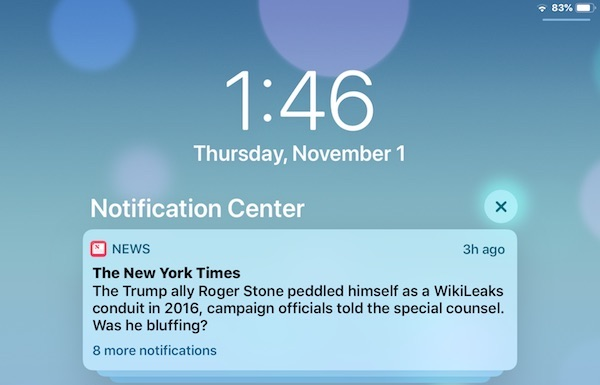
You did something thoughtful. You set up The New York Times, The Wall Street Journal, CNBC Pro, and Barron’s on your parent’s devices so they could enjoy trusted, high-quality journalism every day. Then the buzzing started — a ding at breakfast, a flash at the doctor’s office, a headline lighting up their wrist in the middle of a left turn. For many older adults, these constant alerts aren’t news. They’re noise. The good news: you can keep every newspaper and turn off every pop-up in about two minutes per device. Here’s exactly how.
- All four apps — NYTimes, WSJ, CNBC, and Barron’s — send their own alerts, and you turn each one off the exact same way.
- On iPhone and iPad, a single master switch called Allow Notifications stops every pop-up, ding, and red badge for that app.
- The Apple Watch copies the iPhone, so silencing the phone usually silences the watch too — no separate change needed.
- Want to keep the headlines but lose the interruptions? Switch alerts to a twice-a-day summary instead of turning them off.
- Worried about the road? Turn on Driving Focus so the car silences everything automatically.
Turn Off News Alerts on the iPhone (About 2 Minutes)
You’ll do this once for each newspaper. Start with The New York Times, then repeat the same three steps for The Wall Street Journal, CNBC Pro, and Barron’s.
Step 1 — Open Settings. On the Home Screen, tap the gray Settings icon. It looks like a set of gears.
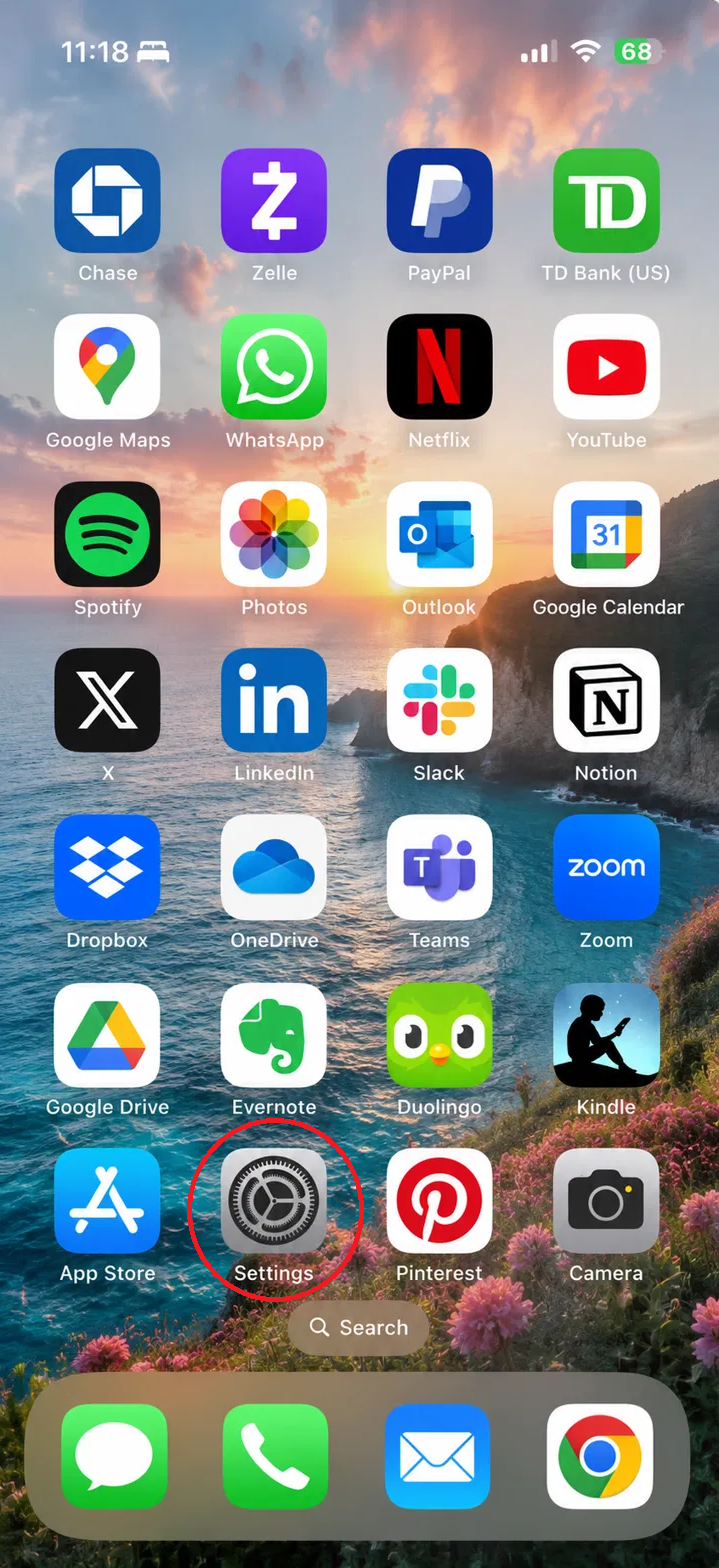
Step 1: Tap the gray Settings (gears) icon.
Step 2 — Open Notifications and find the app. Tap Notifications. Scroll down the alphabetical list and tap NYTimes. The word “Immediate” underneath it means alerts are currently on.
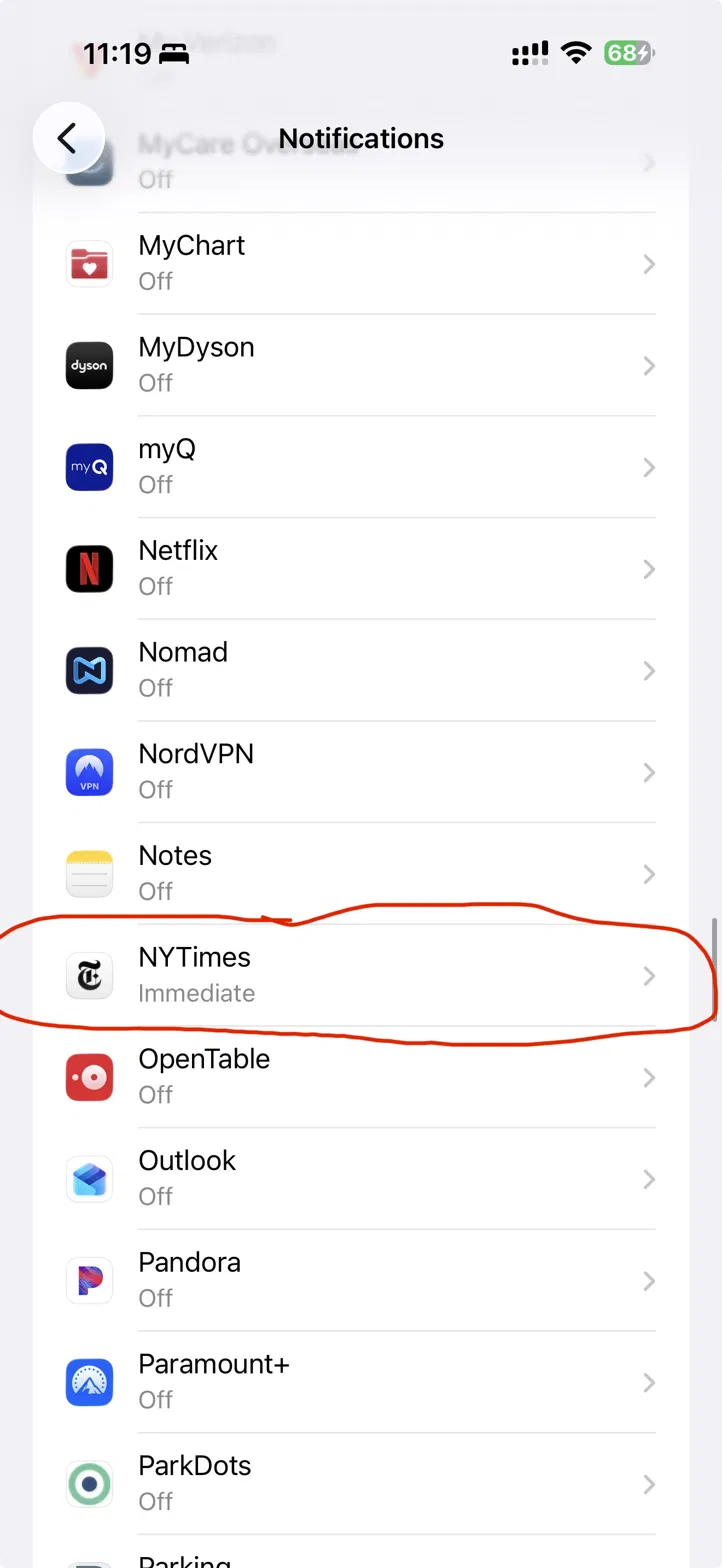
Step 2: Scroll to the app (here, NYTimes) and tap it.
Step 3 — Turn off Allow Notifications. At the top of the screen, tap the green switch next to Allow Notifications so it turns gray and slides to the left. That’s it — no more pop-ups, sounds, or red badges from this app.
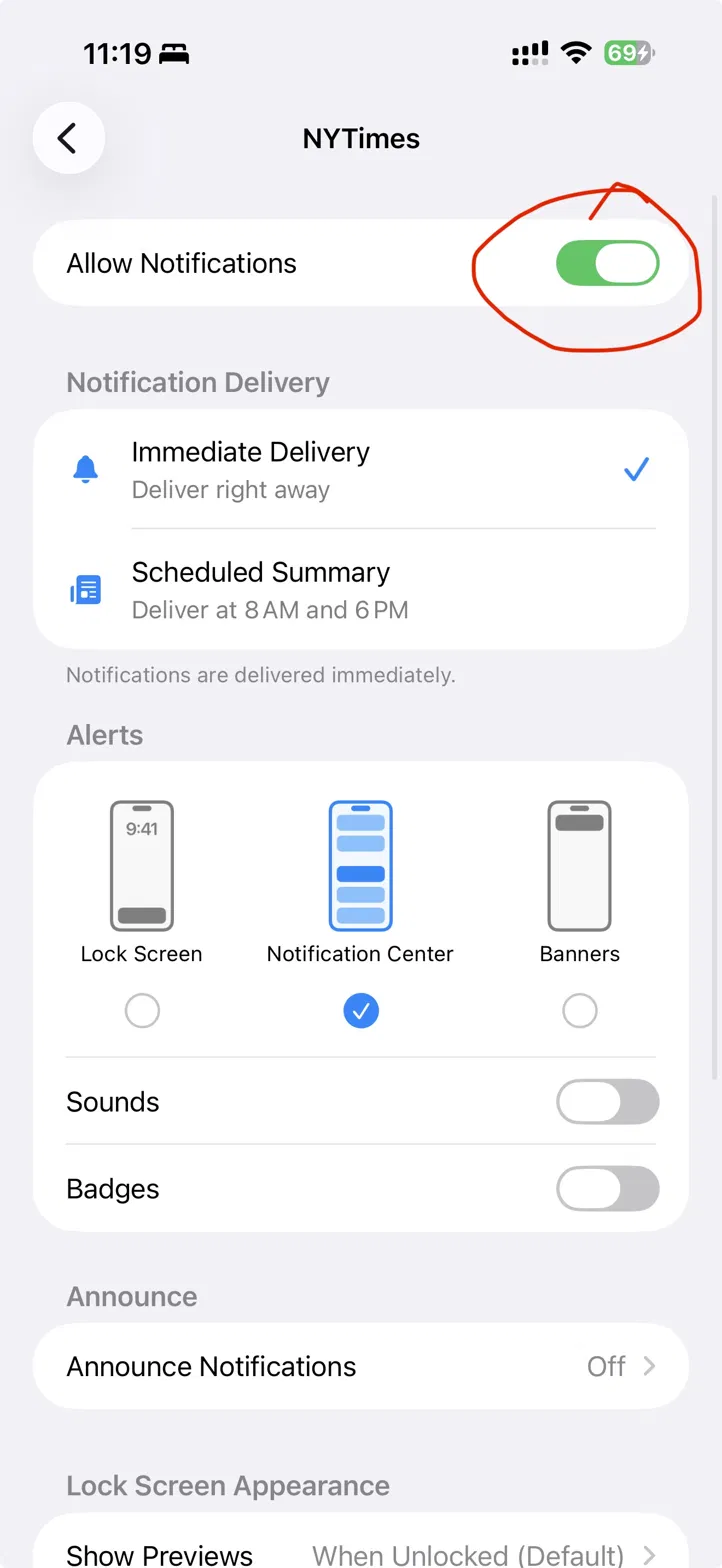
Step 3: Tap the green Allow Notifications switch to turn it gray (off).
Now go back and repeat Steps 2–3 for WSJ, CNBC, and Barron’s. Same list, same green switch.
Prefer to Keep the News but Lose the Interruptions?
If your parent still wants headlines — just not all day — you don’t have to turn the app off completely. On that same NYTimes screen (shown above), leave Allow Notifications on and adjust these instead:
- Tap Scheduled Summary so alerts arrive together at set times (for example, 8 AM and 6 PM) instead of the second they happen.
- Turn off Sounds so nothing dings.
- Turn off Badges so no red number sits on the app icon.
- Under Alerts, uncheck Lock Screen and Banners and leave only Notification Center. Headlines then wait quietly until your parent opens Notification Center themselves — nothing pops up on screen.
This keeps the journalism they love while removing the buzzing that pulls their eyes away.
Do the Same on the iPad
Notification settings live on each device separately, so changing the iPhone does not change the iPad. On the iPad, open Settings → Notifications → the news app → Allow Notifications and turn it off (or switch to a summary), exactly as above. The alert shown at the top of this article is an iPad lock-screen pop-up — repeating these steps on the iPad makes it disappear too.
The Apple Watch Simply Copies the iPhone
Here’s the part that saves you time: by default, an Apple Watch mirrors the iPhone’s notifications for apps like these. So once you turn off (or summarize) the news alerts on the iPhone, the watch stops showing them too.
If your parent wants alerts to stay on the phone but never on the wrist, you can silence just the watch:
- On the iPhone, open the Watch app.
- Tap My Watch, then Notifications.
- Scroll to Mirror iPhone Alerts From and turn off the switch next to each news app.
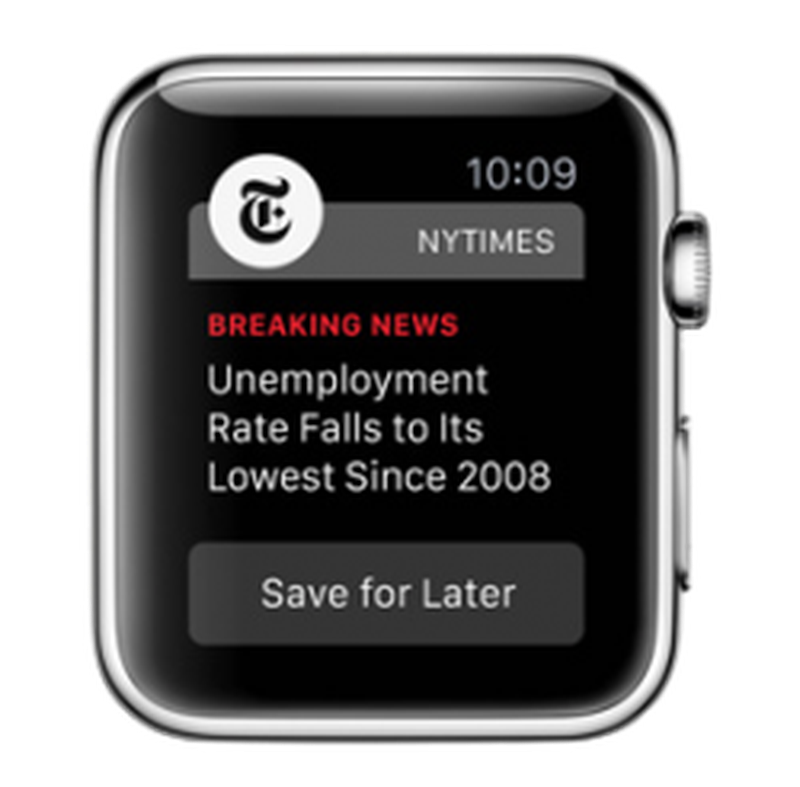
A breaking-news alert on the wrist — exactly the kind these steps remove. Apple Watch photo adopted from MacRumors (macrumors.com).
The Single Best Fix for the Road: Driving Focus
If your main worry is distraction while driving, Apple has a built-in feature for exactly that. Driving Focus can silence every notification — news, texts, everything — the moment the car starts moving, then let them through again when the trip ends.
- Open Settings → Focus → Driving.
- Set it to turn on Automatically (or when connected to the car’s Bluetooth).
Menu names and options can vary by iPhone model and iOS version, so check the current settings on your parent’s device. When it’s on, the phone stays quiet in the cup holder and the watch stays quiet on the wrist — no willpower required.
A Few Things to Keep in Mind
- Each device is separate. Turning alerts off on the iPhone does not touch the iPad. Repeat the steps on every device your parent uses.
- The news is still there. Turning off notifications does not cancel the subscription or delete the app. Your parent simply opens the app when they want to read — nothing is lost.
- Don’t silence everything. While you’re in the app list, resist turning off every app. Keep alerts on for Phone, Messages, medical apps (like MyChart), calendar reminders, and medication apps so important, time-sensitive messages still get through.
- Steps can shift with updates. Apple occasionally changes menu names and layouts. If a screen looks a little different, look for the words Notifications and Allow Notifications — the idea is the same.
- Managed watches are different. If the watch was set up for your parent by a family member as a managed device, mirrored settings may not apply; adjust notifications directly in the Watch app instead.
Goldie’s Cheat Sheet: Every Device, One Quick Fix
|
Device |
Where to Go |
What to Do |
|---|---|---|
|
iPhone (each app) |
Settings → Notifications → NYTimes (then WSJ, CNBC, Barron’s) |
Turn off Allow Notifications — or tap Scheduled Summary for headlines twice a day |
|
iPad (each app) |
Settings → Notifications → the news app |
Repeat the same steps; iPad settings are separate from the iPhone |
|
Apple Watch |
Turns off automatically when the iPhone alert is off — or Watch app → My Watch → Notifications → Mirror iPhone Alerts From |
Toggle the app off to silence the wrist while keeping the phone |
|
While driving (all apps) |
Settings → Focus → Driving |
Set it to turn on Automatically so the car silences every alert |
Where to Subscribe: The Newspapers in This Guide
|
Newspaper |
Best For |
Subscribe |
|---|---|---|
|
The New York Times |
General news, politics, and culture |
|
|
The Wall Street Journal |
Business, markets, and world news |
|
|
CNBC Pro |
Investor tools, stock picks, and live TV |
|
|
Barron’s |
Weekly market analysis for investors |
Screenshots are generated by ChatGPT. Apple Watch photo adopted from MacRumors (macrumors.com).
Disclaimer: GoldieCircle may recommend third-party products and services based on internal evaluation. Such recommendations do not constitute a warranty or guarantee of performance, suitability, or lifespan. All products are subject to their respective manufacturers’ terms and conditions. GoldieCircle assumes no liability for any claims or damages arising from the use of any recommended product or service.


Loading comments…