
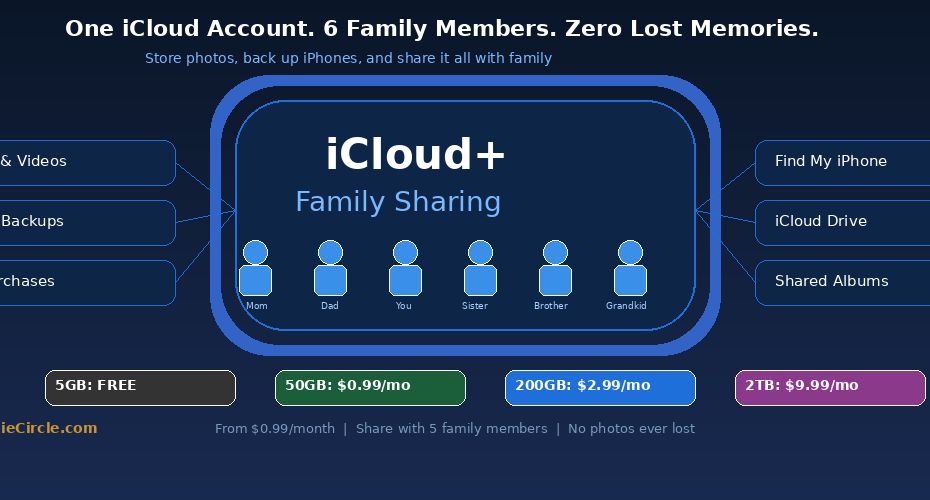
☁️ My Mom Lost 10 Years of Photos When Her iPhone Died — Here’s the $2.99/Month Fix!
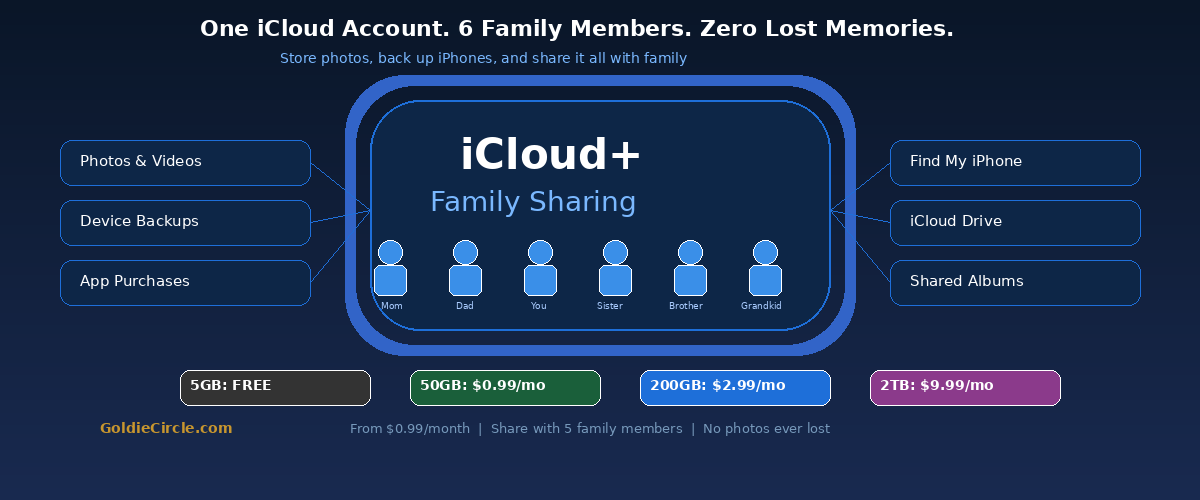
⚠️ IMAGINE THIS: Your mom drops her iPhone in the kitchen sink. Or your dad’s old iPhone 8 finally dies after 7 years. All those irreplaceable photos — grandkids’ first steps, your parents’ 50th anniversary, that family trip to Italy or Japan — gone forever. This happens to thousands of seniors every year because they never backed up to iCloud. For just $2.99/month, you can protect every photo, every memory, every app — and share the storage with up to 5 family members.
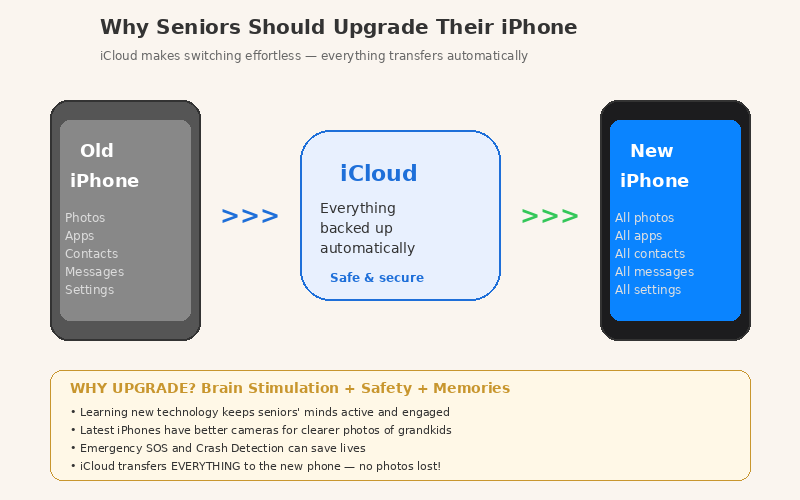
Apple iCloud+ automatically backs up your iPhone every night while it charges. All your photos, videos, contacts, apps, messages, and settings are safely stored in Apple’s encrypted cloud. When you upgrade to a new iPhone, everything transfers automatically — no cables, no computer, no tech skills needed. And with Family Sharing, one person pays for the plan and up to 5 other family members share the storage. Everyone’s photos and files stay completely private — you share the space, not the content.
💡 Key Points:
- 📸 Never Lose Precious Photos Again – iCloud Photos automatically uploads every photo and video to the cloud the moment you take it. Travel pictures, grandkid milestones, holiday gatherings — all safely backed up. Even if the iPhone breaks, gets lost, or is stolen, every memory is safe and waiting on your new device.
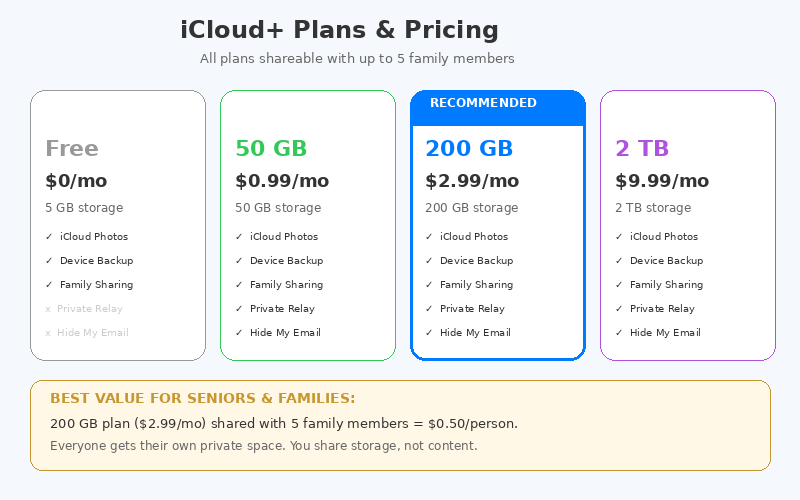
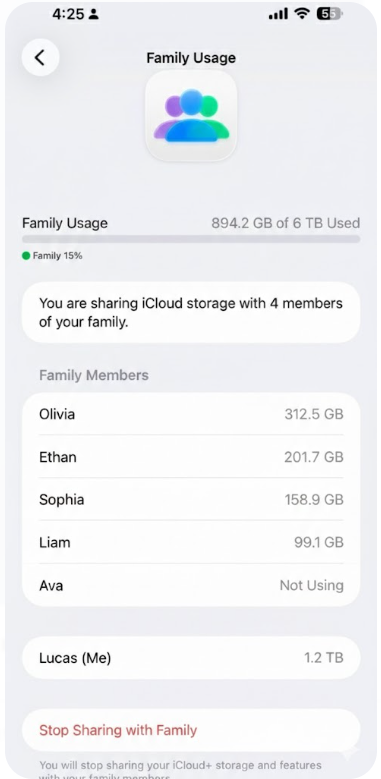
- 👨👩👧👦 Share with Up to 5 Family Members plus 1 organizer so 6 people – One iCloud+ plan covers the whole family. Mom, Dad, you, your siblings, even a grandchild — total share the storage. Each person’s data stays completely private. At $2.99/month for 200 GB shared by 6 people, that’s just $0.50 per person. Organizer can upgrade storage size later with a few clicks on their iPhone.
|
|
|
- 📱 Effortless iPhone Upgrades — Stimulates the Brain! – Seniors should upgrade to the latest iPhone to keep their minds active by learning new technology. With iCloud, switching phones takes minutes — just sign in, and all photos, apps, contacts, and settings download automatically. No tech skills required. Studies show that learning to use new technology might help maintain cognitive function in older adults.
- 📚 Backs Up Apps, Messages & Everything Else – It’s not just photos. iCloud backs up your apps (health apps, banking, FaceTime), text messages, voicemails, contacts, calendar, Notes, Safari bookmarks, and even your Home Screen layout. When your parent gets a new iPhone, it’s like picking up right where they left off.
- 🔒 Find My iPhone — Locate Lost Devices Instantly – iCloud powers Find My iPhone, so if your parent loses their phone at the grocery store, in a taxi, or between couch cushions, you can locate it on a map, play a sound, or remotely lock it. This works on iPhones, iPads, AirPods, Apple Watch, and Mac.
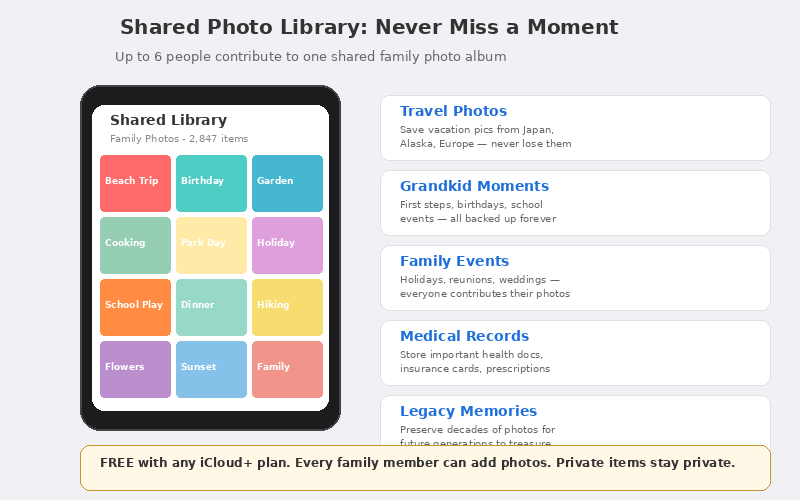
- 📷 Shared Photo Library — Everyone Contributes – Create a Shared Photo Library where up to 6 family members can add their best photos. When your sibling takes a photo of Mom at Thanksgiving and you take one of the grandkids at Christmas, they all appear in one beautiful shared album everyone can enjoy.
🔧 Quick Setup Guides (Job Aids)
👉 Caregivers: Set this up on your parent’s iPhone. It takes 10 minutes. After that, everything backs up automatically every night.
☁️ Step 1: Create an Apple Account & Turn On iCloud
- Open Settings on your parent’s iPhone. If they see their name at the top, they already have an Apple Account — skip to Step 2. If it says “Sign in to your iPhone,” tap it.
- Tap “Create Apple Account” if they don’t have one. Enter their name, date of birth, and an email address (this becomes their Apple ID). Create a strong password and write it down somewhere safe.
- Agree to Terms & Conditions. Verify the email if prompted. Once signed in, iCloud is automatically activated with the free 5 GB plan.
- Turn on iCloud Backup: Settings → [Your Name] → iCloud → iCloud Backup → toggle ON → tap “Back Up Now” to start the first backup.
💡 Tip: Write down the Apple ID email and password on a card and keep it in a safe place. Caregivers should also save a copy.
💳 Step 2: Upgrade to iCloud+ (Paid Storage)
- Go to Settings → [Your Name] → iCloud → Manage Account Storage (or “Manage Storage” on older iOS).
- Tap “Change Storage Plan” or “Upgrade to iCloud+.”
- Choose your plan: We recommend 200 GB for $2.99/month — best value for families. Enough for thousands of photos and multiple device backups.
- Confirm payment. Apple charges monthly to the credit/debit card on the Apple Account but use your credit cards to get travel points. You can also use Apple Account balance.
💡 Tip: The 200 GB plan is the sweet spot. At $2.99/month ($35.88/year) shared with 6 family members, it costs just $0.50/person/month.
👨👩👧 Step 3: Set Up Family Sharing (Share with 5 Members)
- Go to Settings → [Your Name] → Family Sharing. The person who pays for iCloud+ becomes the Family Organizer.
- Tap “Set Up Your Family” if it’s not already set up. Tap “Invite Family Members.”
- Enter each family member’s Apple ID email or phone number. They’ll get a notification to accept. You can invite up to 5 people (6 total including the organizer).
- Share iCloud+: Go to Settings → [Your Name] → Family Sharing → iCloud+ → toggle ON “Share with Family.” All members now use the shared 200 GB storage.
💡 Tip: Each person’s photos, messages, and files are 100% private. Nobody can see anyone else’s data. You only share the storage space.
📸 Step 4: Turn On iCloud Photos (Auto-Backup Every Photo)
- Go to Settings → [Your Name] → iCloud → Photos.
- Toggle ON “Sync this iPhone.” This uploads every photo and video to iCloud automatically.
- Select “Optimize iPhone Storage” to save space on the phone. Full-resolution originals stay safe in iCloud while smaller versions stay on the device.
- Repeat on every family member’s iPhone so everyone’s photos are backed up.
💡 Tip: Connect to Wi-Fi for the first upload. It may take a few hours if there are thousands of photos. After that, new photos sync instantly.
📷 Step 5: Create a Shared Photo Library
- Go to Settings → [Your Name] → iCloud → Photos → Shared Library.
- Tap “Start Setup” and invite family members from your contacts. Choose which existing photos to include (all, by date, or pick manually).
- In the Camera app, tap the people icon (top left) to toggle between Personal and Shared Library. Photos taken in Shared mode automatically appear for everyone.
💡 Tip: Perfect for family trips! When everyone is on the Shared Library, all vacation photos from every family member’s phone appear in one place.
⚠️ Things to Consider
- iCloud requires an Apple device (iPhone, iPad, or Mac) and an internet connection. The initial photo upload needs fast Wi-Fi, preferred 1GB home internet to transfer large photos and videos faster.
- The free 5 GB plan fills up very fast — it’s not enough for photos and backups. Upgrade to at least 50 GB ($0.99/mo) or 200 GB ($2.99/mo).
- Family Sharing shares the storage pool, not your content. Nobody can see your photos or files unless you specifically share them.
- When storage is full, iCloud stops backing up. You’ll get a notification — either upgrade the plan or delete old files.
- iCloud+ includes privacy features: Private Relay (hides browsing activity), Hide My Email (creates anonymous email addresses), and HomeKit Secure Video for security cameras.
- Keep the Apple ID email and password written down and stored safely. If you forget it, recovering the account can be very difficult.
🎁 Recommended iCloud Plans
|
☁️ Plan |
Why It Helps Seniors & Families |
How to Get It |
|
iCloud+ 50 GB $0.99/month |
Good for 1 person with light photo use. Backs up one iPhone + basic photos. Includes Private Relay and Hide My Email. |
Settings → [Name] → iCloud → Upgrade |
|
iCloud+ 200 GB $2.99/month ⭐ BEST VALUE |
Best for families! Share with 5 family members ($0.50/person). Enough for thousands of photos, multiple device backups, and years of memories. All iCloud+ privacy features included. |
Settings → [Name] → iCloud → Upgrade |
|
iCloud+ 2 TB $9.99/month |
For large families with decades of photos and videos. Unlimited HomeKit security cameras. Massive space for multiple iPhones, iPads, and Macs. |
Settings → [Name] → iCloud → Upgrade |
Photos adopted from Claude and Apple.
Disclaimer: GoldieCircle may recommend third-party products and services based on internal evaluation. Such recommendations do not constitute a warranty or guarantee of performance, suitability, or lifespan. All products are subject to their respective manufacturers’ terms and conditions. GoldieCircle assumes no liability for any claims or damages arising from the use of any recommended product or service.
Reader Feedback
Join GoldieCircle to leave a comment.