
- Wi-Fi Calling is ON by default on most iPhones. When the iPhone is on home Wi-Fi, it often routes calls and texts through the router instead of the cellular network.
- Home Wi-Fi fails more often than people think. Storms, power blips, ISP glitches, and modem reboots can leave the router “connected” but with no real internet.
- Cellular is usually the more reliable path at home. Most seniors have full cellular signal indoors. Keeping their iPhone on cellular for calls means a router glitch never affects their ability to dial 911.
- Seniors may not know how to “reset” the phone in a panic. If the phone says “No Service” or a call won’t connect, they may not think to toggle Airplane Mode or reboot the device.
Sit with your parent or do this on their iPhone with their permission. It’s a one-time setting change that takes about 60 seconds. They can always rejoin Home Wi-Fi later if they want to (for a video call with the grandkids, for example) but overall, “forgetting” the network does not break anything.
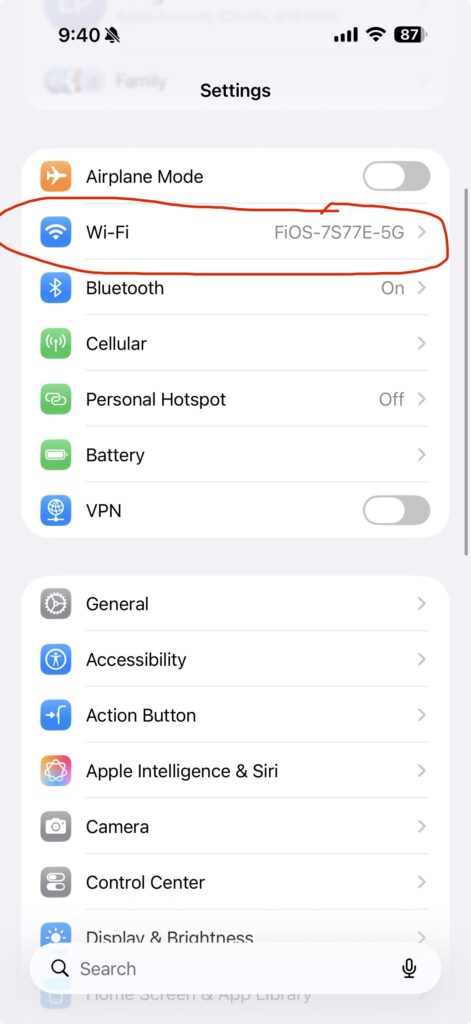
Step 1: Open Settings → Tap Wi-Fi
Open the Settings app on the iPhone (gray gear icon on the home screen). Near the top of the list, tap the row labeled “Wi-Fi.”
Step 2: Tap the Blue (i) Next to the Home Network
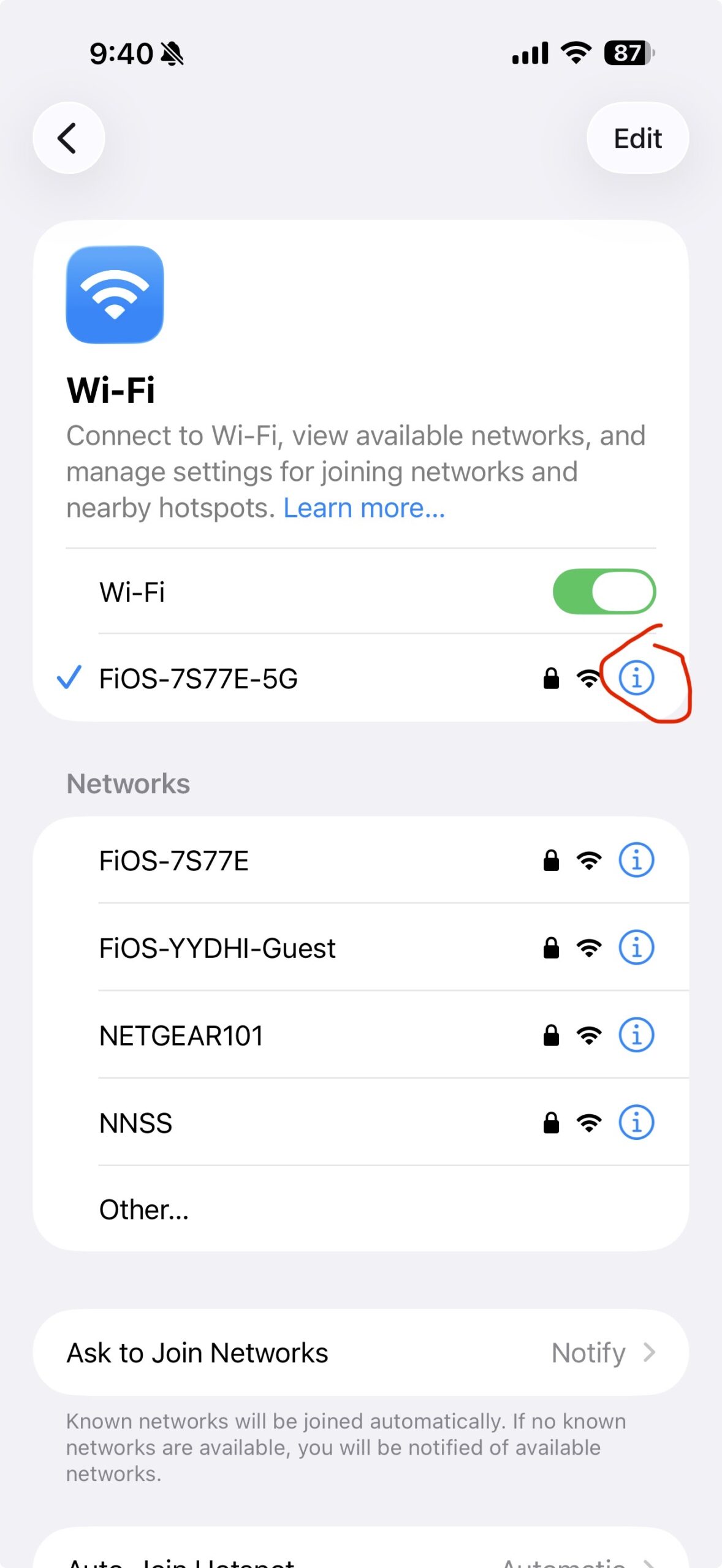
Find the network with a blue checkmark () on the left — that is the home Wi-Fi the iPhone is currently using. On the right side of that row, tap the small blue circle with a lowercase “i” inside it. That opens the network’s details.
Step 3: Tap “Forget This Network”
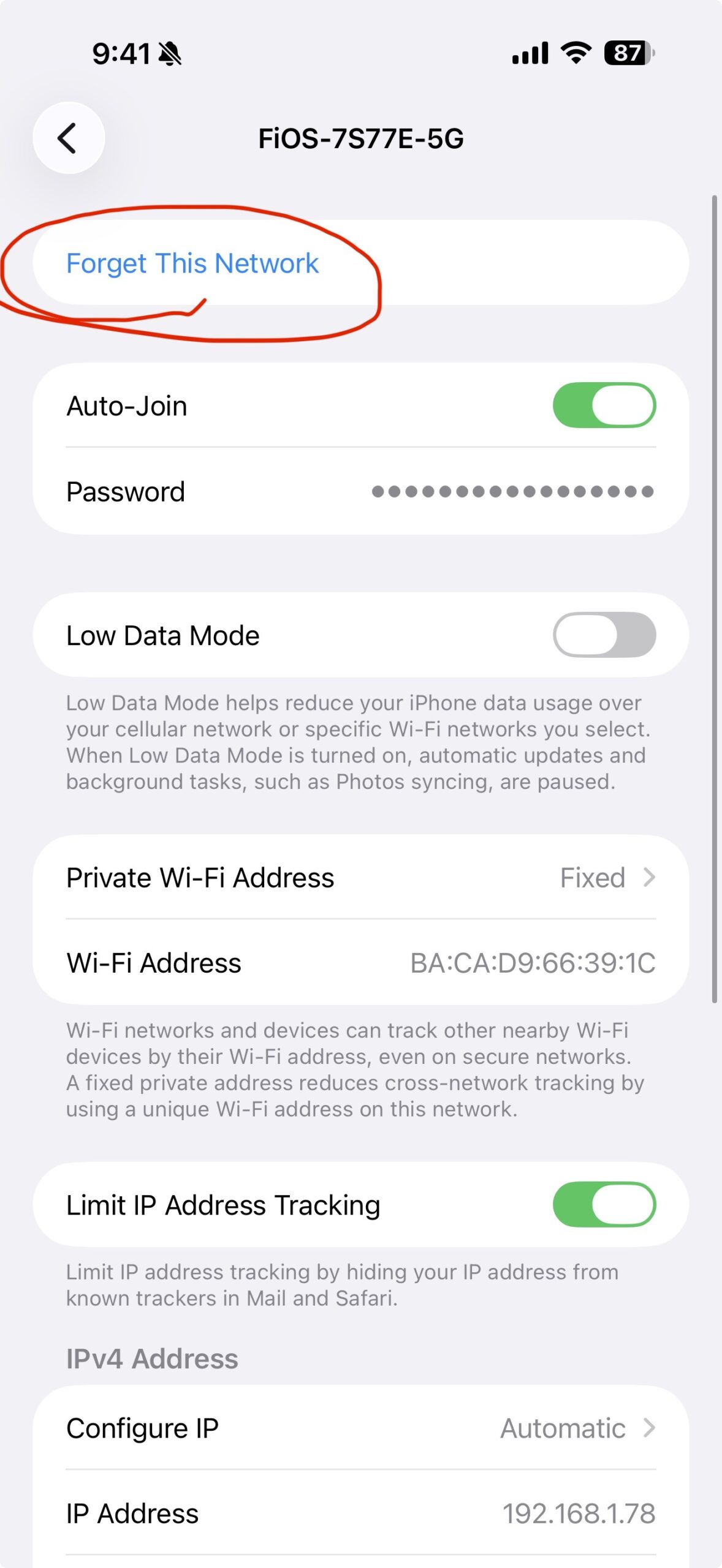
At the very top of the network details screen, you’ll see “Forget This Network” in blue text. Tap it.
Step 4: Tap the Red “Forget” Button to Confirm
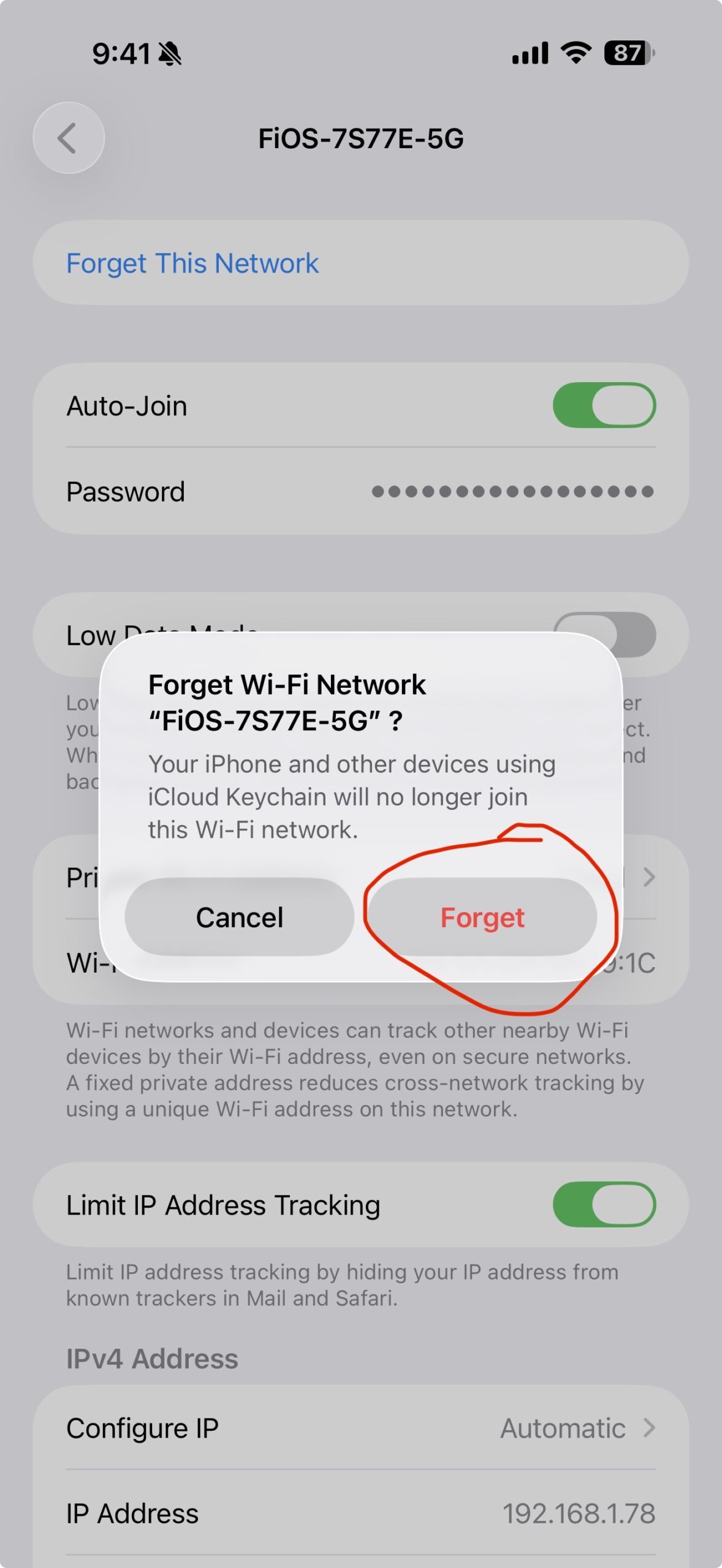
A confirmation popup will appear. Tap the red “Forget” button on the right. That’s it. The iPhone is now set to use cellular service for all calls, texts, and FaceTime — the same network that worked even when the home internet went down during the last storm.
Things to Consider Before You Do This
- Check the cellular signal inside their home first. Walk through the kitchen, bedroom, bathroom, and basement with the phone. If they get at least 2–3 bars in every room, they’re in good shape. If signal is weak indoors, see the alternative below.
- Alternative if cellular signal is weak indoors: Leave Wi-Fi connected, but turn off Wi-Fi Calling instead. On the iPhone, go to Settings → Cellular → Wi-Fi Calling, then switch it off. This keeps Wi-Fi for browsing while forcing voice calls onto cellular.
- Their cellular plan will now handle all data on the phone. If they only use the iPhone for calls, texts, and a few apps, this likely costs nothing extra. Heavy app users (streaming video, video calls) may want to check their data plan first.
- They can rejoin Wi-Fi anytime. “Forget” is not permanent — they can tap the network name and re-enter the password in under a minute if they want to.
- This is not a substitute for a medical alert system. For seniors with serious health conditions or fall risk, a dedicated medical alert button (with its own cellular line) is a stronger safety net than a phone alone.
- Make sure the emergency address on file with their carrier is current. Wi-Fi Calling uses a registered address for 911 location, and an out-of-date address can send responders to the wrong place.
Top Pick for Home Internet to Help Aging Parents Stay Connected
|
Product |
Why It Helps Seniors |
Link |
|
Verizon Fios Home Internet + Verizon Wi-Fi Router |
Fiber-optic internet generally delivers more consistent uptime than cable or DSL during storms and power blips, which can help reduce the kinds of router glitches this article describes. Use the Verizon Wi-Fi router included with most Fios plans for the simplest setup and one number to call for support. Ask about senior, military, and accessibility discounts. Available in select areas — check Verizon.com for service in your parent’s ZIP code. |
Photos adopted from iPhone Settings screenshots provided by GoldieCircle’s Editorial Team. iPhone is a trademark of Apple Inc.
Disclaimer: GoldieCircle may recommend third-party products and services based on internal evaluation. Such recommendations do not constitute a warranty or guarantee of performance, suitability, or lifespan. All products are subject to their respective manufacturers’ terms and conditions. GoldieCircle assumes no liability for any claims or damages arising from the use of any recommended product or service. The information in this article is general in nature and is not professional medical, legal, or technical advice. Carrier features, iPhone settings, and 911 service availability may vary by location and provider — verify current functionality with the relevant manufacturer or carrier.
Reader Feedback
Join GoldieCircle to leave a comment.