
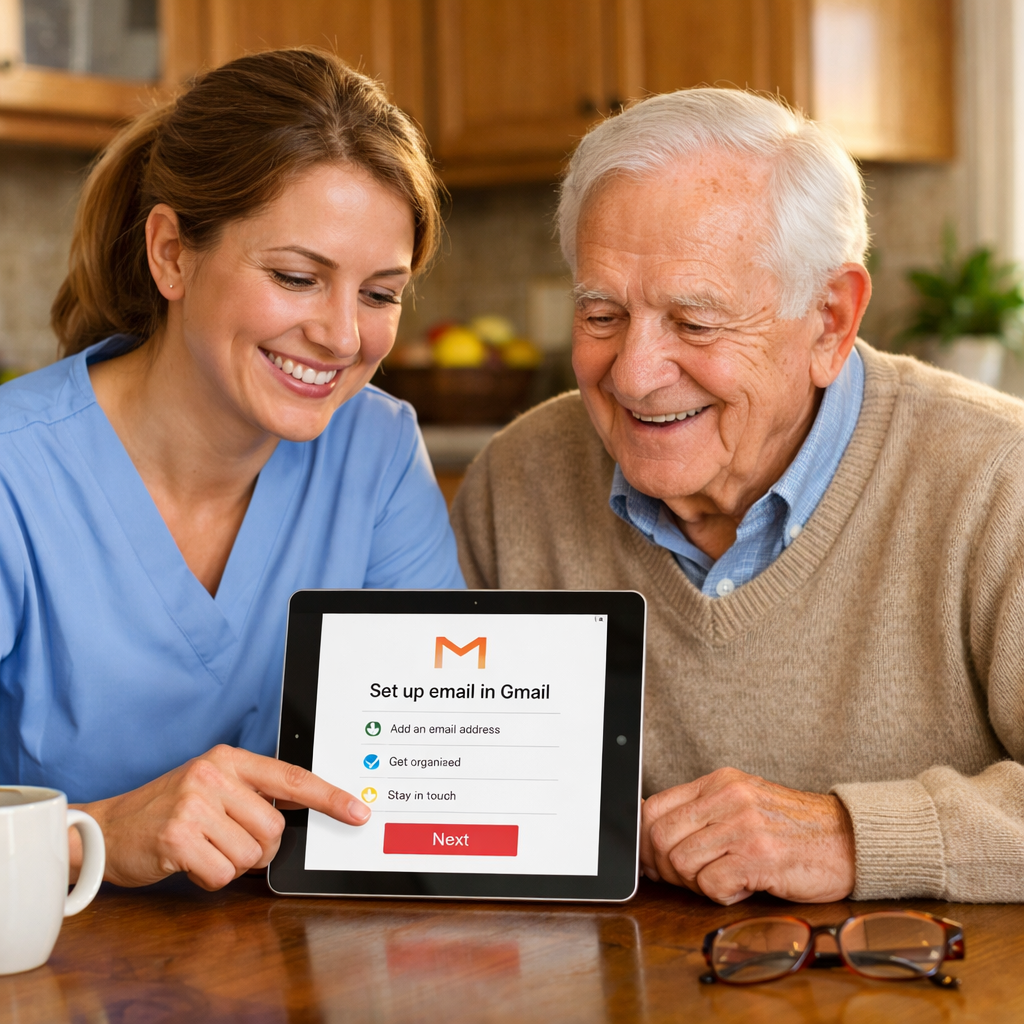
1. Gmail is free, modern, and built for safety — Gmail includes spam filtering, two-step verification, and works on iPhone, iPad, Android, and any laptop. It connects to Google Drive, Google Photos, and Google Calendar automatically.
2. Use a nickname, not your legal name — When creating a Gmail account, you can enter a preferred name (like “Goldie M.” instead of “Goldina Martinez”). This helps protect your identity and still looks personal.
3. Do NOT use a phone number for account recovery — Phone numbers change. If your parent switches carriers or loses their phone, they may never regain access. Instead, use a caregiver’s email as the recovery method.
4. Transfer old AOL or Hotmail emails into Gmail — Gmail has a built-in import tool that can pull in old emails from AOL.com, Hotmail.com, or Outlook.com. No paid software needed. Your parent keeps every old email.
Many older adults still use AOL Mail or Hotmail (now Outlook.com) — services that were popular in the 1990s and early 2000s. While they still function, these platforms have fallen behind in security features, spam protection, and mobile-friendly design.
Gmail offers 15 GB of free storage, advanced spam filtering, and seamless integration with Google’s productivity tools. It works beautifully on iPhones, iPads, and laptops. Most importantly, Gmail’s security features — like two-step verification and AI-powered phishing detection — are among the strongest available today.
If your parent is comfortable with their current email, there is no rush to switch. But if they’re having trouble logging in, running out of storage, or losing emails to spam, Gmail may be a better fit.
How to Set Up a Gmail Account Safely
Ask a caregiver, family member, or trusted friend to help with this setup. Once created, the account runs on its own — but the initial setup benefits from a second pair of eyes.
Step 1: Go to Gmail.com
Open Safari (iPhone/iPad) or any web browser (laptop). Go to gmail.com and tap “Create account” → select “For my personal use.”
Step 2: Use a Nickname — Not Their Full Legal Name
Google asks for a first and last name. Your parent does not need to use their legal name. Use a preferred name or nickname. For example:
Instead of “Goldina Rose Martinez,” enter “Goldie M.” or “G. Martinez.”
This name appears when they send emails. It helps protect their full identity online while still being recognizable to friends and family.
Step 3: Choose a Simple, Memorable Email Address
Pick something easy to remember and spell. Avoid long strings of numbers. Examples:
Tip: Write the email address and password on iPhone’s Notes (on Notes app, set up “Required Face ID to open for extra protection” and paper and keep it in a safe place (like a locked drawer or fireproof safe). Share a copy with the caregiver.
Step 4: Create a Strong Password
Use at least 8 characters with a mix of uppercase, lowercase, numbers, and a symbol. Example: Goldie#Sun2024
Avoid birthdays, pet names, or “123456.” If your parent has trouble remembering, write the password down and store it securely.
Step 5: Skip the Phone Number — Use a Recovery Email Instead
This is the most important step.
Google will ask for a phone number for recovery. Tap “Skip” or leave it blank. Phone numbers change — if your parent switches carriers, gets a new phone, or cancels a line, that recovery method disappears.
Instead, when Google asks for a recovery email, enter the caregiver’s email address (for example: [email protected]). This way, if your parent ever forgets their password, the reset link goes to someone they trust — not to a disconnected phone.
Why this matters: According to Google’s own support documentation, a recovery email is one of the most reliable ways to regain access to a locked account. Phone-based recovery can fail when the number is no longer active.
Step 6: Finish Setup and Add Gmail to iPhone or iPad
Once the account is created:
1. On iPhone or iPad, go to Settings → Mail → Accounts → Add Account → Google.
2. Sign in with the new Gmail address and password.
3. Toggle ON Mail, Contacts, and Calendars.
4. The Gmail app (free from the App Store) can also be downloaded for a better experience.
How to Transfer Old AOL Emails to Gmail
Your parent does not need to lose their old emails. Gmail has a free, built-in import tool that pulls emails from AOL.com directly into the new Gmail inbox. Here’s how:
On a Laptop or iPad (Using a Web Browser)
1. Sign in to the new Gmail account at gmail.com.
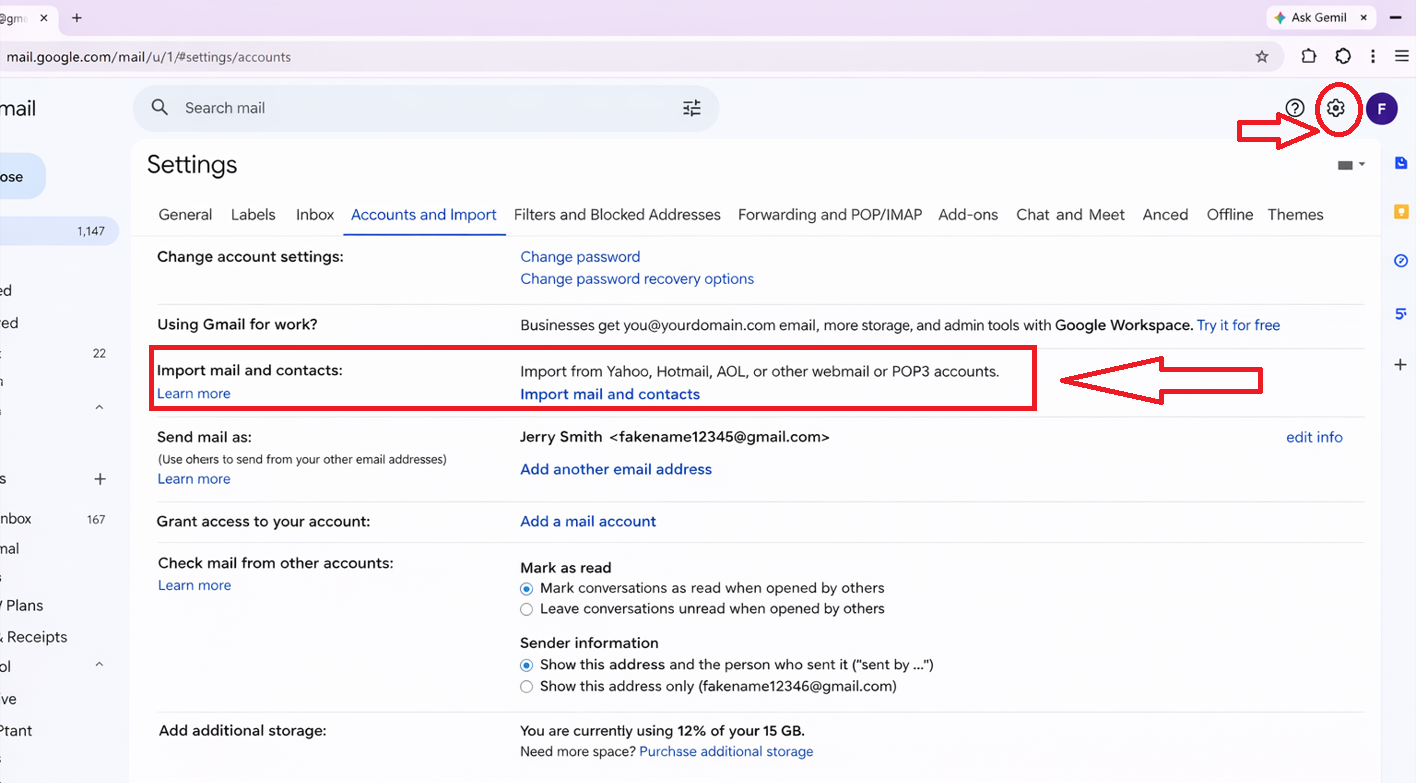
2. Click the Gear icon (top-right corner) → “See all settings.”
3. Go to the “Accounts and Import” tab.
4. Click “Import mail and contacts.”
5. Enter the full AOL email address (e.g., [email protected]) and click Continue.
6. Enter the AOL password. (Note: You may need to generate an “App Password” in your AOL account security settings if two-step verification is enabled.)
7. Check the boxes for “Import contacts” and “Import mail.”
8. Click “Start Import.”
9. Gmail will begin pulling all old AOL emails into your inbox. This may take several hours to a few days depending on how many emails exist.
What gets transferred: All emails in your AOL Inbox are imported. Contacts can also be imported. AOL email folders may appear as Gmail labels.
What to know: The AOL account stays active. You can still receive emails at the old address during the transition. This import process is completely free — no paid software is needed.
How to Transfer Old Hotmail (Outlook.com) Emails to Gmail
The process for Hotmail.com, Outlook.com, and Live.com accounts is nearly identical to the AOL process above. Gmail’s import tool supports all of these Microsoft email services.
On a Laptop or iPad (Using a Web Browser)
1. Sign in to the new Gmail account at gmail.com.
2. Click the Gear icon → “See all settings” → “Accounts and Import” tab.
3. Click “Import mail and contacts.”
4. Enter the full Hotmail or Outlook email address (e.g., [email protected]).
5. Click Continue and sign in to the Microsoft account when prompted.
6. Grant Gmail permission to access your Hotmail/Outlook data by clicking “Accept.”
7. Select “Import contacts” and “Import mail” → click “Start Import.”
8. Wait for the import to complete. Gmail may take up to 2 days for large mailboxes.
Tip: You can also set Hotmail/Outlook to auto-forward future emails to your new Gmail. In Outlook.com, go to Settings → Mail → Forwarding → enter the Gmail address → Save.
Setting Up Gmail on iPhone or iPad
Once the Gmail account is created and old emails are imported, add it to the iPhone or iPad for everyday use:
1. Open Settings on the iPhone or iPad.
2. Tap Mail → Accounts → Add Account → Google.
3. Enter the new Gmail address and password.
4. Toggle ON Mail, Contacts, Calendars, and Notes.
5. Open the Mail app. The new Gmail inbox — with all imported emails — will appear.
Optional: Download the free Gmail app from the App Store for a richer experience with labels, search, and spam management.
Things to Consider
• Do not close the old AOL or Hotmail account right away. Keep it active for at least 90 days so you can catch emails from contacts who still use the old address.
• Update important accounts. After switching, update your email address with your doctor’s office, pharmacy, bank, insurance, and Social Security online account.
• Write everything down. Keep the new Gmail address, password, and recovery email on paper in a safe, secure location.
• Strong Wi-Fi is important. Importing old emails requires a stable internet connection. If Wi-Fi is unreliable, wait until it is stable before starting the import.
• Gmail import is free. You do not need to purchase any third-party software. Gmail’s built-in tool handles AOL, Hotmail, Outlook, and Yahoo imports at no cost.
Goldie’s Table — Recommended Tools & Resources
|
Resource |
Why It Helps Seniors |
Link |
|
Gmail (Free) |
Free email with 15 GB storage, spam filtering, two-step verification, and Google ecosystem integration. Works on iPhone, iPad, Android, and laptop. |
|
|
Gmail App (iPhone/iPad) |
Free app for a better mobile experience. Supports labels, smart search, and push notifications. |
|
|
Google Account Recovery Help |
Official Google documentation on how to recover accounts using a recovery email. No phone number needed. |
|
|
Apple iCloud Keychain |
Built into every iPhone and iPad. Saves and auto-fills passwords securely. No extra app needed. |
Photos adopted from Google, and ChatGPT.
Disclaimer: GoldieCircle may recommend third-party products and services based on internal evaluation. Such recommendations do not constitute a warranty or guarantee of performance, suitability, or lifespan. All products are subject to their respective manufacturers’ terms and conditions. GoldieCircle assumes no liability for any claims or damages arising from the use of any recommended product or service.
Reader Feedback
Join GoldieCircle to leave a comment.