
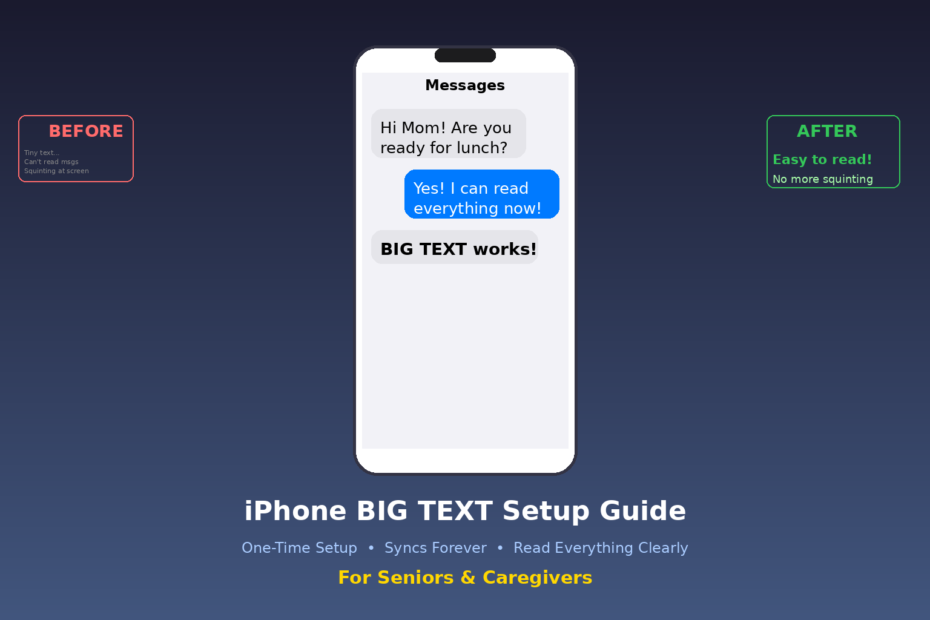
📱 I Made My 80-Year-Old Mom’s iPhone Text HUGE — She Cried Happy Tears When She Read Her First Message!
📱 The One-Time iPhone Setting Every Senior Needs — And How Apple ID Keeps It Forever
⚠️ IMAGINE THIS: Your mom gets a text from you. She picks up her iPhone, squints at the screen, holds it at arm’s length, and says: “I can’t read any of this.” She puts the phone down. Your message goes unread. She misses your dinner plans, your appointment reminder, your “I love you.” This happens millions of times every day to seniors who don’t know about ONE simple setting buried in their iPhone.
The fix takes less than 2 minutes. It’s free. And if you set up an Apple ID first, your mom will NEVER have to do it again — even when she gets a brand-new iPhone. Her big text follows her forever. Here’s exactly how to do it, step by step.
💡 Key Points:
1. 🔤 BIG TEXT = Read Everything Clearly. Make text LARGE across Messages, Mail, Notes, Safari, and most apps. No more squinting, no more holding the phone at arm’s length.
2. ☁️ Apple ID = Your Settings Travel With You. Sign in with an Apple ID and iCloud saves your text size, bold text, and all accessibility settings. Get a new iPhone? Just sign in — done.
3. ⚡ One-Time Setup, Lifetime Benefit. Set it up once for Mom or Dad. It takes 2 minutes. They’ll never need to ask for help with tiny text again.
4. 💚 Reduces Frustration for Seniors AND Caregivers. Seniors feel independent. Caregivers stop getting “I can’t read this” calls. Everyone stays connected through text messages, emails, and apps.
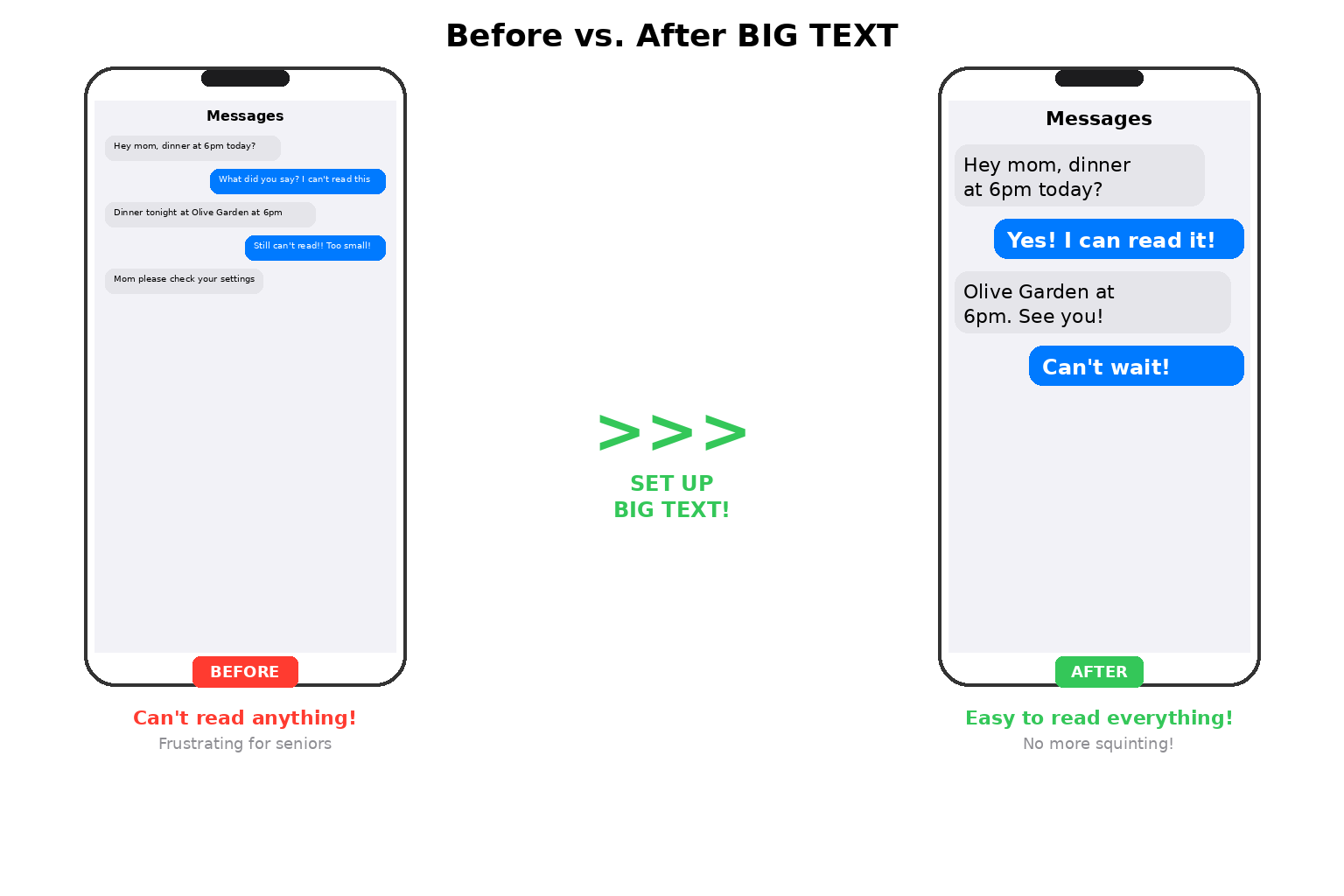
🔧 Quick Setup Guides (Job Aids)
👉 Caregivers: Set this up once for your parent. It takes 2 minutes. After that, everything stays big automatically.
☁️ Step 0: Make Sure Mom Has an Apple ID (MOST IMPORTANT!)
Before you change ANY settings, make sure your parent is signed in with an Apple ID. This is the single most important step because Apple ID + iCloud = settings that follow you to every new iPhone forever.
1. Open Settings (the gray gear icon on the Home Screen).
2. Look at the very top. If you see a name and photo, they’re already signed in — you’re good! Skip to Step 1.
3. If it says “Sign in to your iPhone,” tap it and either sign in with their existing Apple ID or create a new one. Apple walks you through it.
4. Make sure iCloud is turned ON. Go to Settings > [Name at top] > iCloud and check that the main toggle is on.
💡 Tip: Write down the Apple ID email and password somewhere safe (NOT on the phone but if you write on your iPhone’s Note then use Set up Face ID for Apple’s Notes App for security). When Mom gets a new iPhone in 2–3 years, she’ll just sign in with this Apple ID and ALL her settings — including Big Text — will be waiting for her.
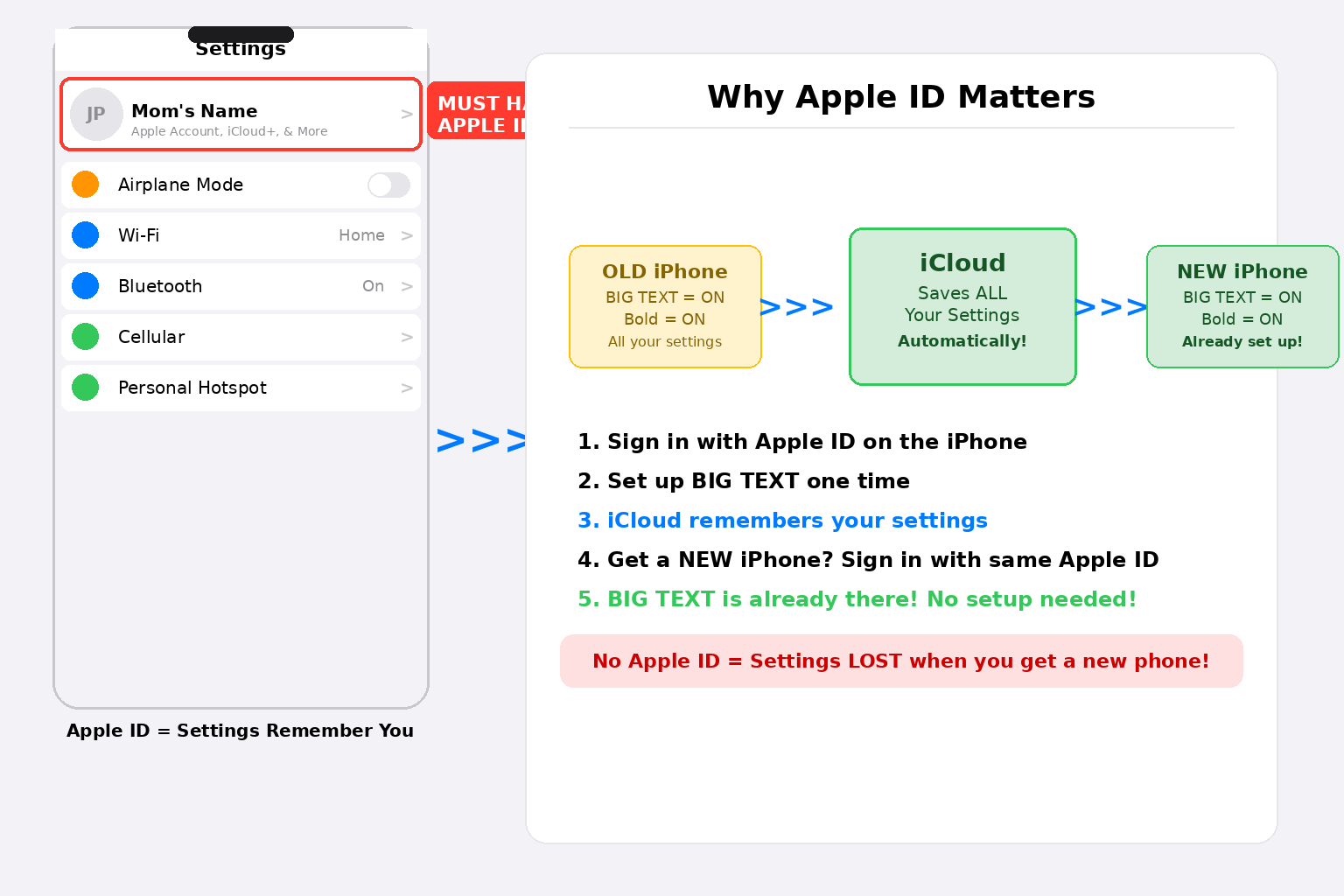
⚠️ Without Apple ID: Every time Mom gets a new iPhone, someone has to set up Big Text all over again. With Apple ID: Sign in once, Big Text is already there. Zero work.
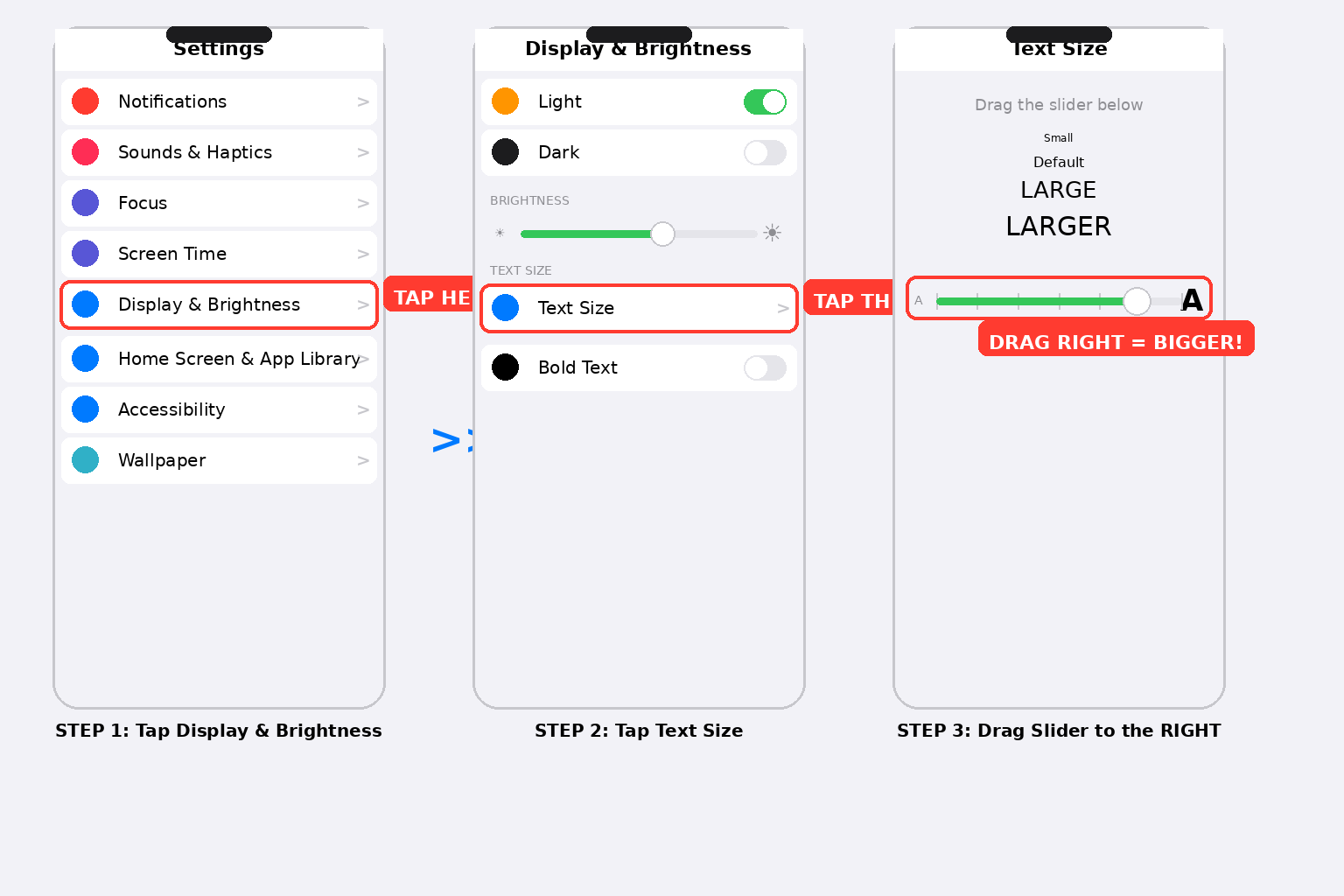
🔤 Step 1: Make Text Bigger (Display & Brightness)
This is the quickest way to make text larger across the entire iPhone.
1. Open Settings > Display & Brightness.
2. Tap Text Size.
3. Drag the slider to the RIGHT to make text bigger. Drag it most of the way for seniors.
4. Watch the preview text above the slider change size in real time. Stop when it’s comfortable to read.
💡 Tip: Show the phone to Mom and ask: “Can you read this easily?” Keep dragging right until she says yes without squinting.
🔤 Step 2: Turn On Bold Text (Makes Everything Thicker)
Bold Text makes every letter thicker and easier to see — like the difference between a pencil and a marker.
1. Go to Settings > Display & Brightness.
2. Scroll down to Bold Text.
3. Toggle it ON (green). The phone may restart briefly — that’s normal.
💡 Tip: Combine BIG text size + Bold for the clearest, easiest-to-read experience. This alone can be life-changing for seniors.
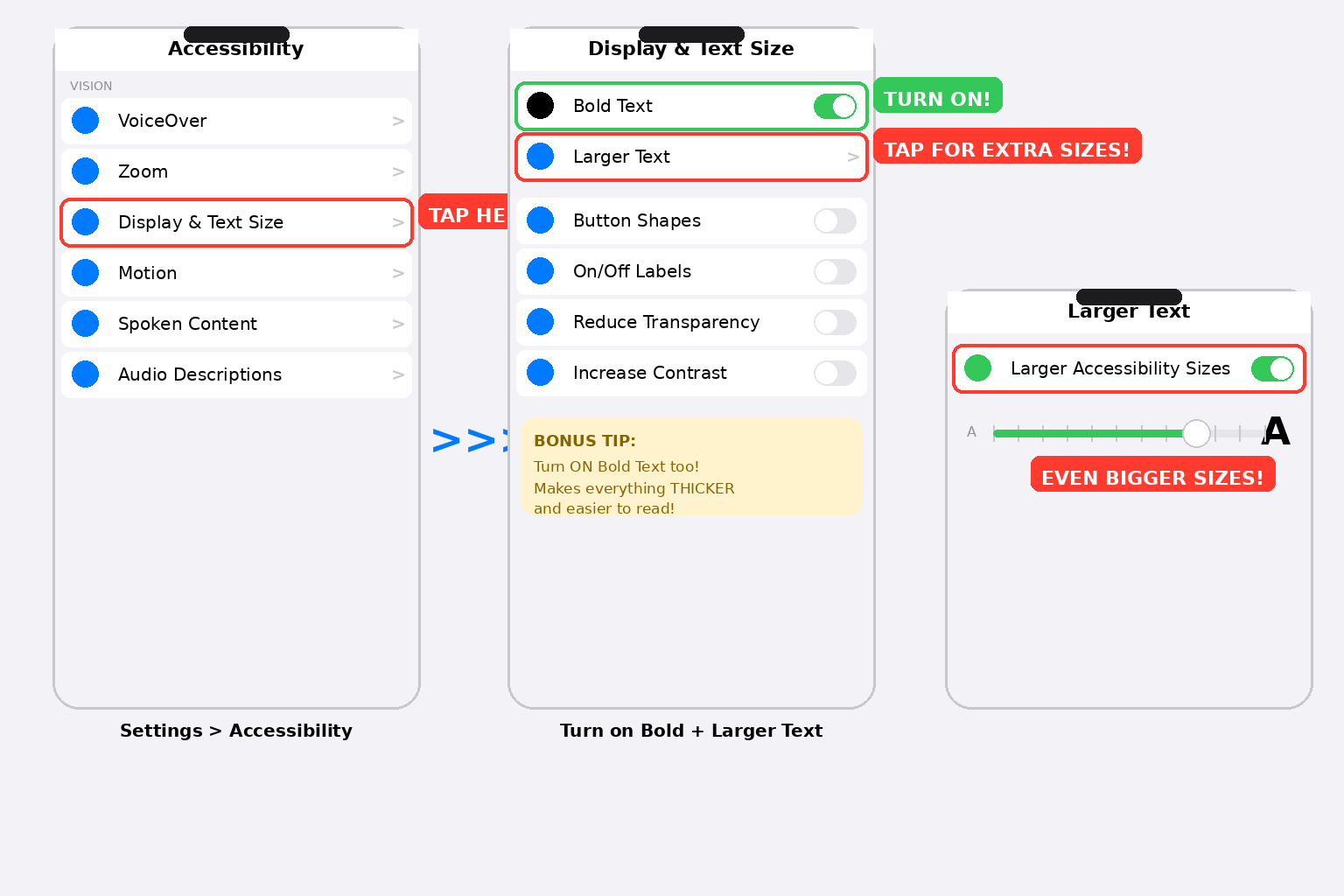
🔍 Step 3: Need EVEN BIGGER? Use Accessibility Larger Text
If the regular text size slider wasn’t big enough, there’s a secret second slider hidden in Accessibility that goes MUCH bigger.
1. Go to Settings > Accessibility > Display & Text Size.
2. Tap Larger Text.
3. Turn ON the toggle for “Larger Accessibility Sizes” at the top.
4. Now the slider below unlocks EXTRA-LARGE sizes that go way beyond the normal range. Drag right until Mom can read comfortably.
💡 Tip: This is the setting most people don’t know about! It unlocks text sizes that are 2–3x bigger than the regular slider.
✅ Step 4: Test It — Send Mom a Text Message!
After you set everything up, test it right away:
1. Send Mom a text message from your phone. Something like: “Hi Mom! Can you read this?”
2. Watch her face. If she reads it easily and smiles — you’re done!
3. If she’s still squinting, go back to Step 3 and drag the slider further right.
4. Also check Mail, Safari, and Notes — the big text should work across all these apps.
💡 Tip: Open the Messages app together and read a conversation. If Mom can read her texts without reaching for reading glasses, mission accomplished!
👨👩👧 Step 5: Tell Other Family Members the Apple ID
1. Write down Mom’s Apple ID email and password on paper and keep it in a safe place.
2. Share the Apple ID info with a trusted sibling or family member in case Mom needs a new phone.
3. When Mom gets a new iPhone in the future, just sign in with the same Apple ID during setup. All her settings — including Big Text, Bold Text, and accessibility options — will be restored automatically via iCloud.
💡 Tip: This is the secret that Apple Store employees use: iCloud backup + Apple ID = your parent’s phone settings are immortal. No caregiver stress.
⚠️ Things to Consider
• iPhone must be running iOS 15 or later for all accessibility text features. Most iPhones from iPhone 6s and newer support this.
• Some third-party apps may not respect the system text size setting. Major apps like Messages, Mail, Safari, Notes, Maps, and Calendar all support it.
• Making text very large may change how some screens look — some buttons may wrap or menus may scroll. This is normal and expected.
• If Mom uses an iPad too, sign in with the same Apple ID and the Big Text settings will sync there as well.
• For seniors with very low vision, also explore: Settings > Accessibility > Display & Text Size > Increase Contrast and Reduce Transparency for even clearer readability.
🎁 Buy These Gifts For Loved Ones
|
🎁 Product |
Why It Helps Seniors |
Link |
|
iPhone Case with Built-in Stand |
A protective case with a built-in kickstand so seniors can prop the phone on a table to read texts, watch videos, or FaceTime hands-free. No more holding the phone at arm’s length. |
Buy on Amazon → (also sold on Apple.com) |
Photos adopted from Claude, Amazon, Apple
Disclaimer: GoldieCircle may recommend third-party products and services based on internal evaluation. Such recommendations do not constitute a warranty or guarantee of performance, suitability, or lifespan. All products are subject to their respective manufacturers’ terms and conditions. GoldieCircle assumes no liability for any claims or damages arising from the use of any recommended product or service.
Reader Feedback
Join GoldieCircle to leave a comment.